PowerCLI Report Tip – Part 1

Introduction

For the last years, I’ve been writing a lot of PowerCLI scripts to automate repeated tasks and produce custom reports for managers to review the infrastructure. For the next 4 series of blog, I will be sharing a number tips on how to write an efficient and tidy scripts.
This will be the first series and it will discuss the ways to improve the performance.
Note: PowerCLI 5.8 Release 1 & vCenter Server 5.5 were used.

Getting Started

Let’s get started with a simple script:

$report = foreach ($vm in (Get-VM -Location (Get-Cluster -Name cluster1))) {
   $vm | Select @{N="ESXi";E={$vm.VMHost.Name}}, Name, NumCPU, MemoryGB, @{N="Datastore";E={ [string]::Join(",", (Get-Datastore -VM $vm | %{$_.Name})) }}
}

An example output is attached below:

ESXi,VM,CPU,Memory,Datastore
ESXi_test1,test1,1,1,datastore1,datastore2,datastore3
ESXi_test1,test2,1,1,datastore1
ESXi_test2,test3,1,4,datastore4,datastore5

For the testing, I selected a cluster with 300 virtual machines to measure how long it takes to run the script above and it took 5 minutes. 5 minutes does look OK, however, how about 2000~3000 virtual machines? It will take about an hour which is very inefficient.

How could we improve the performance?

Trick

Many people might think that saving a full list of output would take longer than applying a filter. For example, Get-Datastore vs Get-Datastore -VM $vm.

Is this the case? Let’s have a look:

  • Get-Datastore => To retrieve 565 datastores, it took 2.2 seconds
  • Get-Datastore -VM “VM” => It took 8 seconds

Surprising result, right? Get-Datastore without a filter is approximately 4 times faster, even it queried for 565 datastores. With this result, it was safe to assume that for the script above, it does Get-Datastore for 300 times which is roughly 300 * 8 = 2400 seconds, about 4 minutes. Sounds about right.

To improve the performance, one of the ways I could came up was to:

  • Save Get-Datastore output in a variable, e.g. $datastore_list = Get-Datastore
  • Utilise the $datastore_list to find which datastores are allocated to virtual machines

This way, instead of executing Get-Datastore 300 times, it will run Get-Datastore once, save the result in a variable and query datastore information from the variable. This does look much more efficient. However, how could we achieve this?

If you look at the properties of Get-VM closely (run Get-VM | Select * to view all properties, this will be discussed in depth on the next series), there is a property called “DatastoreIdList”. Each datastore has a unique datastore id and Get-VM has this datastore id value. This means, we could:

  • Run a foreach loop against DatastoreIdList
  • If datastore ID matches to any datastore id in $datastore_list variable, output

Translating the above into a PowerCLI command:

$datastore_list = Get-Datastore
(Get-VM -Name “VM”).DatastoreIdList | Foreach-Object { $datastore_id = $_; $datastore_list | where {$_.id -match $datastore_id} }

Converting the script in Getting Started section:

$datastore_list = Get-Datastore
$report = foreach ($vm in (Get-VM -Location (Get-Cluster -Name cluster1))) {
   $vm | Select @{N="ESXi";E={$_.VMHost.Name}}, Name, NumCPU, MemoryGB, @{N="Datastore";E={ [string]::Join(",", ( $_.DatastoreIdList | Foreach-Object { $datastore_id = $_; $datastore_list | where {$_.id -match $datastore_id} } )) }}
}

The above script took 27 seconds, producing the same output. This is approximately 20 times faster than the original one.

Wrap-Up

Throughout the blog, it discussed a few ways on how to improve the performance of PowerCLI scripts:

  • Instead of applying a filter, save the whole output
  • Avoid executing a same command over and over
  • Take a closer look at properties to avoid running a command

Hope this helped and on the next series, I will deep dive into properties.

PowerCLI Report – vMSC Health Check

Introduction

I recently wrote a PowerCLI script to check the health state of Metro Storage Cluster. The intention of this script is to:

  • Ensure the cluster setting’s correct
  • Check compute resources on each datacenters
  • Check uniform access
  • Check DRS group

Throughout this post, it will be going over the script & explanation and sample output.

One assumption is that this report is for uniform access design.

Script

As mentioned in the introduction, the script consists of 4 reports. The first one will show the cluster configuration:

  1. Admission control policy enabled?
  2. Admission control policy CPU/Memory
  3. Isolation Addresses
  4. Number of Heartbeat datastores
  5. List of Heartbeat datastores

This will allow the administrators to check and make sure the cluster setting is correct.

The second one is the resource report. This will represent CPU/Memory usage of ESXi servers of each datacenter that will help administrators to decided which datacenter needs to be used when deploying virtual machines to balance out the resource usage.

The third one is the uniform check report. The purpose of this report is to ensure that virtual machines are uniformly accessing ESXi servers as well as datastores. For example, if a virtual machine is running in site 1 but using datastore(s) in site 2, it introduces extra latency between the virtual machine and datastore. DRS rule should handle this but if the virtual machine is not in DRS group or somehow DRS didn’t do the job, it has to be corrected manually.

Lastly, DRS group report. Any virtual machines not in DRS group will be shown. It will list ESXi and datastore(s) so that administrators know which DRS group to put in.

In this script, there are inputs to be replaced, in bold and underline:

  • vCenter server, username and password
  • Cluster name
  • Site expression, 1 and 2. This totally depends on your naming convention, an example is below
    • “s1|site1”
    • “s2|site2”
  • Mail settings

This script is per cluster base so if you have more than 1 cluster, it will be required to run the script multiple times. Attached below:

Connect-VIServer -Server "vCenter Address" -User "vCenter User" -Password "vCenter User Password"

$cluster = Get-Cluster -Name "Cluster Name"
$site_1_expression = "^s1|^site1"
$site_2_expression = "^s2|^site2"
$esxi_list = Get-VMHost -Location $cluster
$datastore_list = Get-Datastore -VMHost $esxi_list
$virtual_machine_list = Get-VM -Location $cluster | Sort Name
$drs_group_list = $cluster.ExtensionData.Configurationex.Group | ?{$_.VM}

$configuration_report = @()
$resource_report = @()
$uniform_report = @()
$drs_report = @()

## 1st Report
## Cluster Settings

$heartbeat_datastore_list = $cluster.ExtensionData.Configuration.DasConfig.HeartbeatDatastore.value | ForEach-Object { $id = $_; $datastore_list | where {$_.id -replace "datastore_list-" -match $id } | %{$_.Name} } 

$configuration_report = $cluster | select @{N="Cluster";E={$_.Name}}, 
                                          @{N="Admission Control Policy";E={$_.ExtensionData.Configuration.DasConfig.AdmissionControlEnabled}},
                                          @{N="Admission Control Policy CPU";E={$_.ExtensionData.Configuration.DasConfig.AdmissionControlPolicy.CpuFailoverResourcesPercent}}, 
                                          @{N="Admission Control Policy Memory";E={$_.ExtensionData.Configuration.DasConfig.AdmissionControlPolicy.MemoryFailoverResourcesPercent}},
                                          @{N="Isolation Addresses";E={[string]::Join(",", ($_.ExtensionData.Configuration.DasConfig.Option | where {$_.Key -match "isolation"} | %{$_.Value}))}},
                                          @{N="Heartbeat Datastore #";E={$_.ExtensionData.Configuration.DasConfig.Option | where {$_.Key -match "heartbeat"} | %{$_.Value}}},
                                          @{N="Heartbeat Datastore";E={[string]::Join(",", ($heartbeat_datastore_list))}}


## 2nd Report
## Resource Compute Usage

$resource_report = "" | select @{N="Site1 CPU Usage";E={ "{0:P1}" -f ( (($esxi_list | where {$_.Name -match $site_1_expression}).CpuUsageMHz | Measure-Object -Sum).Sum / (($esxi_list | where {$_.Name -match $site_1_expression}).CpuTotalMHz | Measure-Object -Sum).Sum ) }},
                               @{N="Site1 Memory Usage";E={ "{0:P1}" -f ( (($esxi_list | where {$_.Name -match $site_1_expression}).MemoryUsageGb | Measure-Object -Sum).Sum / (($esxi_list | where {$_.Name -match $site_1_expression}).MemoryTotalGB | Measure-Object -Sum).Sum ) }},
                               @{N="Site2 CPU Usage";E={ "{0:P1}" -f ( (($esxi_list | where {$_.Name -match $site_2_expression}).CpuUsageMHz | Measure-Object -Sum).Sum / (($esxi_list | where {$_.Name -match $site_2_expression}).CpuTotalMHz | Measure-Object -Sum).Sum ) }},
                               @{N="Site2 Memory Usage";E={ "{0:P1}" -f ( (($esxi_list | where {$_.Name -match $site_2_expression}).MemoryUsageGb | Measure-Object -Sum).Sum / (($esxi_list | where {$_.Name -match $site_2_expression}).MemoryTotalGB | Measure-Object -Sum).Sum ) }} 

## 3rd/4th Report
## DRS Group Report & Uniform Report

foreach ($vm in $virtual_machine_list) {
    $esxi = $vm.VMHost.Name

  $datastore = $vm.DatastoreIdList | Foreach-Object {
        $datastore_id = $_
        $datastore_list | where {$_.id -match $datastore_id} | %{$_.Name}
    }

    foreach ($d in $datastore) { 
        if ( ($esxi -match $site_1_expression -and $d -match $site_1_expression) ) {
            $uniform = "Yes"
        } elseif ( ($esxi -match $site_2_expression -and $d -match $site_2_expression) ) {
            $uniform = "Yes"
        } else {
            $uniform = "No"
            break
        }
    }
    
    $drs_group = $drs_group_list | where {$_.VM -eq $vm.id} | %{$_.Name}

    if (!$drs_group) {
        $drs_group = "No DRS Group"
        
        $drs_report += ("" | select    @{N="VM";E={$vm.Name}},
                                       @{N="ESXi";E={$esxi}},
                                       @{N="VMFS";E={[string]::Join(",", $datastore)}},
                                       @{N="DRS Group";E={$drs_group}} )    
    }
    
    if ($uniform -eq "No") {         
        $uniform_report += ("" | select @{N="VM";E={ $vm.Name }},
                                        @{N="ESXi";E={$esxi}},
                                        @{N="VMFS";E={ [string]::Join(",", $datastore) }},
                                        @{N="DRS Group Name";E={ $drs_group }},
                                        @{N="Uniform Access";E={ $uniform }} )
    }
}    

$header = @"
    <style>
    TABLE {border-width: 1px;border-style: solid;border-color: black;border-collapse: collapse;}
    TH {border-width: 1px;padding: 3px;border-style: solid;border-color: black;background-color: #6495ED;}
    TD {border-width: 1px;padding: 3px;border-style: solid;border-color: black;}
    </style>
"@

$body = "<h1>VMware Metro Storage Cluster Health Check</h1>"
$body += "<h2>Configuration Report</h2>" + ($configuration_report | ConvertTo-HTML -Head $header | Out-String)
$body += "<h2>Resource Report</h2>" + ($resource_report | ConvertTo-HTML -Head $header | Out-String)
$body += "<h2>Uniform Check Report</h2>"

if ($uniform_report.count -eq 0) {
  $uniform_report = "All virtual machines are uniformly accessing ESXi servers and VMFS volumes"
    $body += ConvertTo-HTML -Body $uniform_report | Out-String
} else {
    $body += "<h3>Please correct the following virtual machines</h3>"
    $body += $uniform_report | Sort VM | ConvertTo-HTML -Head $header | Out-String
}

$body += "<h2>DRS Group Report</h2>"
if ($drs_report.count -eq 0) { 
    $drs_report = "All virtual machines are in correct DRS groups"
    $body += ConvertTo-HTML -Body $drs_report | Out-String
} else {
    $body += "<h3>Please put the following virtual machines in appropriate DRS groups</h3>"
    $body += $drs_report | Sort VM | ConvertTo-HTML -Head $header | Out-String
}

Send-MailMessage -From "Sender mail address" -To "To email address" -Subject "vMSC Report" -BodyasHtml -Body $body -SmtpServer "SMTP server address"

Disconnect-VIServer * -Confirm:$false

Sample Output

Attaching sample outputs below:

1

The above example shows you that nonuniform_vm is running on Site 1 ESXi server but accessing Site 2 datastore. It’s in Site 1 DRS group so the VMDK should be storage vMotioned to a datastore in Site 1. Also, test1 and test2 virtual machines are not in DRS group. Based on ESXi and VMFS location, you know which DRS group to put these virtual machines in.

Attaching another example below:

2

In this case, all virtual machines are running uniformly that you don’t have to worry about it. However, still there are two virtual machines test1 and test2 need to be put into proper DRS group.

Hope this helps and always welcome to ask me any questions or issues with regard to this report.

webCommander 4.0 Installation Using Proxy

Introduction

Finally, I found some spare time to upgrade webCommander from 2.0 to 4.0. To make this work, I first had to replace my Windows 2008 R2 to Windows 2012 R2 to upgrade PowerShell to 4.0. PowerShell could be upgraded without OS replacement but it was a good opportunity to try 2012 R2 out.

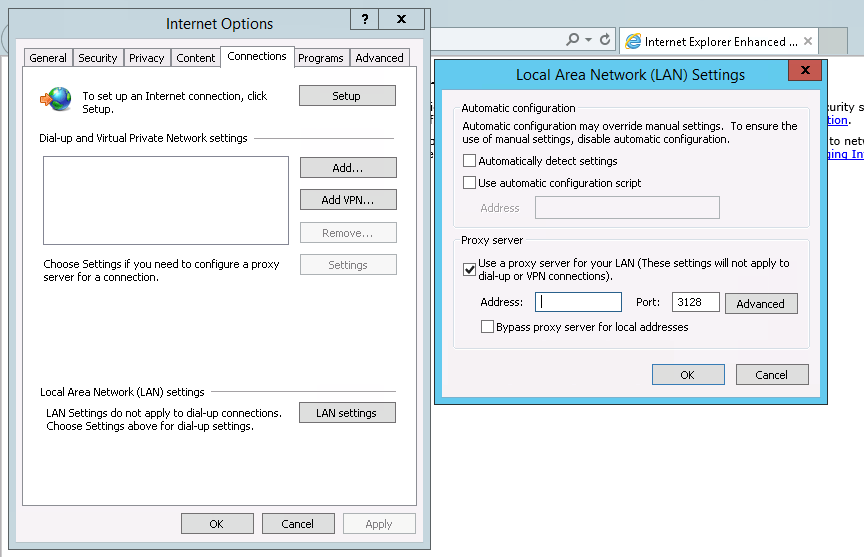
With webCommander 4.0 release, Jerry (@9whirls) has written an excellent automatic installation script (can be found here) that downloads all pre-requisites from the internet, installs IIS…etc. Since my VM was in private network that didn’t have access to outside network, I first tried it by configuring proxy connection within IE setting.

Screen Shot 2014-09-24 at 2.08.57 pm

However, got an error message when I ran the script that is attached below.

Exception calling "DownloadFile" with "2" argument(s): "The remote server returned an error: (407) Proxy
Authentication Required."
At C:\Users\administrator\Desktop\setup.ps1:66 char:2
    + $webClient.downloadfile($packageUrl, "C:\WebCommander\$packageName")
    + ~~~~~~~~~~~~~~~~~~~~~~~~~~~~~~~~~~~~~~~~~~~~~~~~~~~~~~~~~~~~~~~~~~~~
    + CategoryInfo          : NotSpecified: (:) [], ParentContainsErrorRecordException
    + FullyQualifiedErrorId : WebException

Throughout this blog post, I will aid people who’s trying to install webCommander 4.0 but the VM is in a private network that doesn’t have access to internet.

Script Modification

As the script was already using WebClient object, all I had to create was a new WebProxy object to parse the proxy IP address and credentials. In the parameter field, I added in:

  1. IP Address or hostname of the proxy server. Bear in mind, it requires the appropriate port to be specified in the end. Example is attached below.
  2. Username/password that has the access to the proxy server.

The change needs to be made are in bold and italic below.

Parameter

Param (
    $packageUrl = 'https://github.com/vmware/webcommander/archive/master.zip',
    $authentication = 'Windows',
    $adminPassword = '', # administrator password of the windows machine where webcommander is located
    $defaultPassword = '', # default password used to communicate with vSphere, VM and remote machine
    $proxyAddress = '', # IP or hostname of the proxy server. Include the port number in the end. For example, 'proxytest.test.com:3128'
    $proxyUserName = '',
    $proxyUserPassword = ''
)

Once 3 parameters were added in, used one if/else statement to ensure parameters for proxy configuration were entered in. After that, all I had to do was:

  • Define one WebProxy object with proxy server address in the parameter field.
  • Define a PSCredential object also from the parameter above.
  • Use above defined two objects information for the WebClient object.

Again, modification required are in bold and italic below.

WebClient + WebProxy

if ($proxyAddress -and $proxyUserName -and $proxyUserPassword) {
    $webClient = New-Object System.Net.WebClient
    $webProxy = New-Object System.Net.WebProxy($proxyAddress, $true)
    $proxyCredential = New-Object System.Management.Automation.PSCredential($proxyUserName, (ConvertTo-SecureString $proxyUserPassword -AsPlainText -Force))
    $webProxy.Credentials = $proxyCredential
    $webClient.Proxy = $webProxy
} else {
    $webClient = new-object system.net.webclient
}

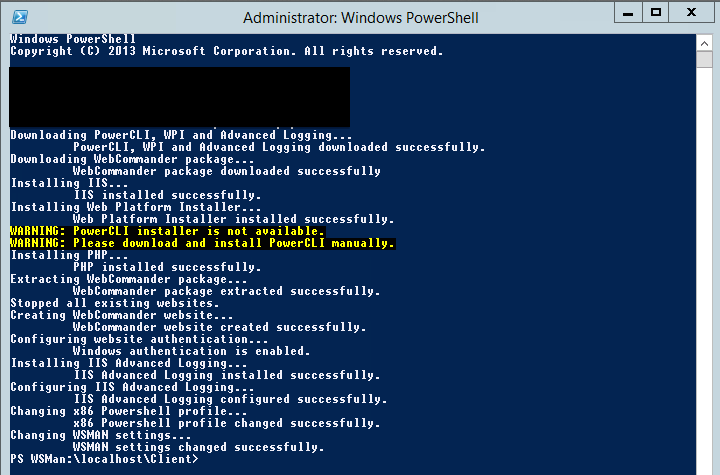
Once the modification was made, ran the script and wallah, it worked!

Screen Shot 2014-09-24 at 10.40.31 am

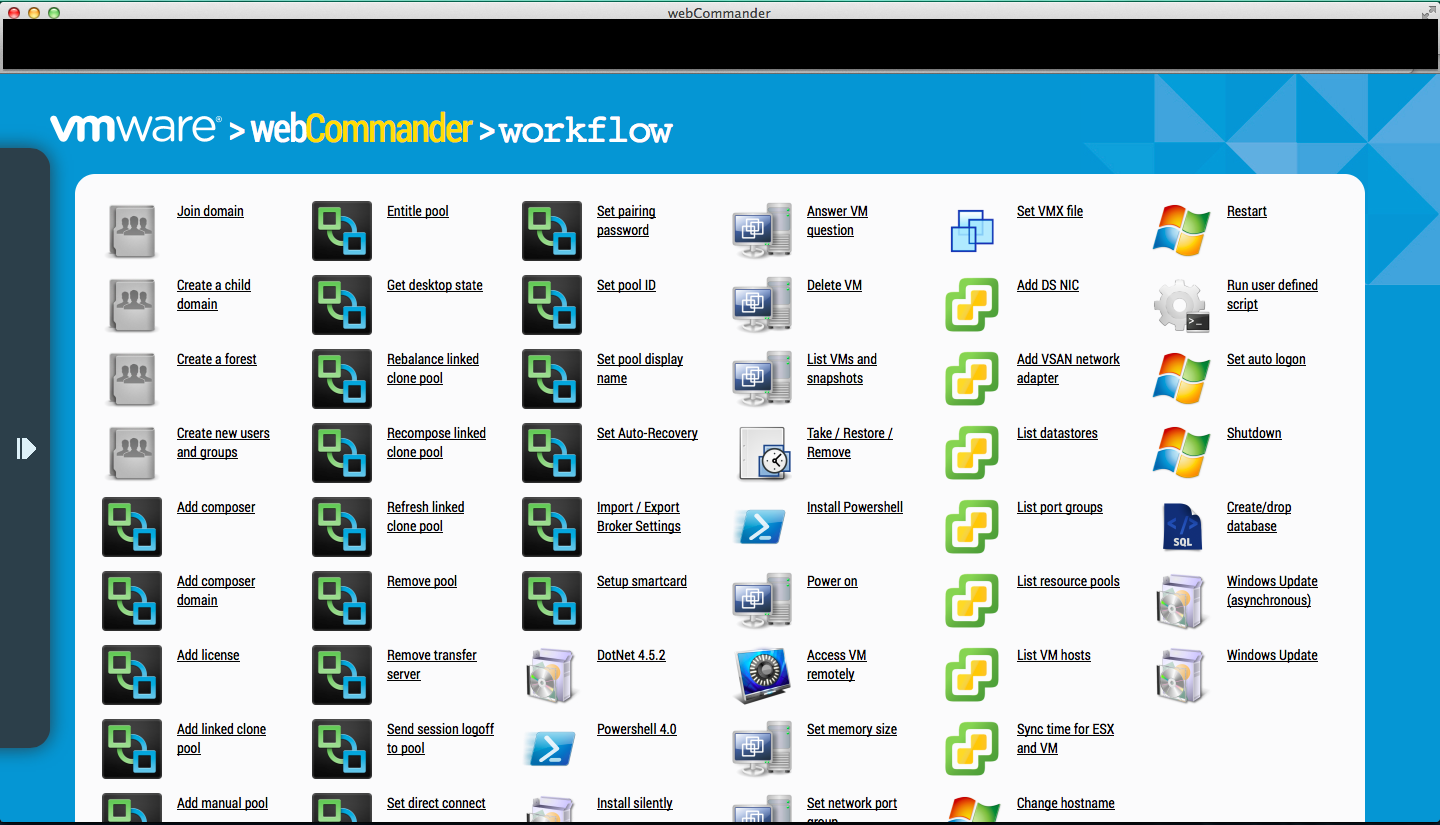
Navigated to webCommand URL and was successful.

Screen Shot 2014-09-24 at 11.26.43 am

Wrap-Up

In near future, I will commit the change above so that whoever requires proxy to install webCommander wouldn’t need to make a change above.

Hope this blogs helped and always welcome to ping me for any issues or suggestions.