PowerCLI – Virtual Machines Running on vDisk in Relationship, IBM SVC

Introduction

Recently, I wrote a PowerCLI script to audit which virtual machines are running on vDisks in relationship. With this report, I could correct naming convention of both VMFS volumes and vDisks and find out which VMFS volumes are not in relationship.

In this blog post, I will be going through:

  • Products Used
  • Script & Explanation
  • Sample Output

Products

The following products are used for this report:

  • PowerCLI 5.5 R2
  • IBM SVC 7.1
  • PLINK

Script

In this script, there are 4 inputs required:

  • SVC user
    • It doesn’t have to be admin as it only queries vDisk & relationship information
  • SVC user’s password
  • Master site’s IP address
  • Auxiliary site’s IP address

I am assuming that you have connected to the vCenter server. Bear in mind that you are connected to only the vCenter server that is the master site, otherwise, it won’t work.

Now, let’s go through how the script works:

  1. Call-SVC function is made in order to save SVC command output to a variable
    • This utilises PLINK to connect to SVC and query based on the command you put
    • In this case, it will use “lsvdisk” and “lsrcrelationship”
  2. Call-SVC function saves
    • Relationship list in master site
    • vDisk list in master site
    • vDisk list in auxiliary site
  3. Using the relationship list and vDisk list in master site in Step 2
    • If master vDisk is in a relationship, it concatenates it to a variable called expression
    • In the end, it becomes a regular expression.
  4. Gathers VMFS volmes by Get-Datastore
  5. Using the regular expression in step 3 i.e. $expression, it finds and saves the list of virtual machines those are running on vDisks in relationship
  6. Foreach virtual machine in the list in step 5
    • Foreach datastore this virtual machine is using
      • Saves name & size of the virtual machine
      • Saves name & capacity & UID of this datastore
      • If this datastore can be found in the master relationship list, it saves
        • Name & state of the relationship
        • Name & UID & IOG of the master vDisk
        • Name & UID & IOP of the auxiliary vDisk
      • Otherwise, put null to above
  7. Once Step 6 foreach loop is finished, save the result and output as a .csv file

Script is attached below.

$result = '' | select VM, "VM Size", VMFS, "VMFS UID", "VMFS Size", "Master vDisk", "Master UID", "Master IOG", "Aux vDisk", "Aux UID", "Aux IOG", Relationship, State

$svc_user = ""
$svc_password = ""
$master_site = ""
$aux_site = ""

## Step1
Function Call-SVC {
    param ($command,$server)
    echo y | C:\script\PLINK\plink.exe -pw $svc_password "$svc_user@$server" "$command -delim ," > temp.csv
    $output = Import-CSV C:\script\powercli\temp.csv
    Remove-Item C:\script\powercli\temp.csv
    return $output
}

## Step2
$relationship_list = Call-SVC "lsrcrelationship" $master_site
$master_vdisk_list = Call-SVC "lsvdisk" $master_site
$aux_vdisk_list = Call-SVC "lsvdisk" $aux_site

## Step3
$master_vdisk_list | Foreach-Object {
    if ($relationship_list.master_vdisk_name -contains $_.Name) {
        $expression += "|" + $_.vdisk_UID
    }
}

## Step4
$datastore = Get-Datastore -Verbose

## Step5
$vm = Get-VM -Datastore ($datastore | where {$_.ExtensionData.Info.Vmfs.Extent.DiskName -match ($expression -replace "^\|") }) -Verbose | Sort Name

## Step6
$result = foreach ($v in $vm) {
    $v.ExtensionData.Datastore.Value | ForEach-Object {
        $id = $_ -replace "[Datastore-]"
        
        $vmfs = $datastore | where { ($_.id -replace "[Datastore-]") -eq $id }

        $result."VM" = $v.Name
        $result."VM Size" = $v.ProvisionedSpaceGB
        $result."VMFS" = $vmfs.Name
        $result."VMFS Size" = $vmfs.CapacityGB
        $result."VMFS UID" = $vmfs.ExtensionData.Info.Vmfs.Extent.DiskName

        $master_vdisk = $master_vdisk_list | where {$_."vdisk_UID" -eq ($vmfs.ExtensionData.Info.Vmfs.Extent.DiskName -replace "naa.").ToUpper()}
        $relationship = $relationship_list | where {$_.master_vdisk_name -eq $master_vdisk.Name}

        if ($relationship) {    
            $aux_vdisk = $aux_vdisk_list | where {$_.Name -eq $relationship.aux_vdisk_name}

            $result."Relationship" = $relationship.Name 
            $result."Master vDisk" = $master_vdisk.Name
            $result."Master UID" = $master_vdisk.vdisk_UID
            $result."Master IOG" = $master_vdisk.IO_group_name 
            $result."Aux vDisk" = $aux_vdisk.Name
            $result."Aux UID" = $aux_vdisk.vdisk_UID
            $result."Aux IOG" = $aux_vdisk.IO_group_name 
            $result."State" = $relationship.state

        } else {
            $result."Relationship" = ''
            $result."Master vDisk" = ''
            $result."Master UID" = ''
            $result."Master IOG" = ''
            $result."Aux vDisk" = ''
            $result."Aux UID" = ''
            $result."Aux IOG" = ''
            $result."State" = ''    
        }

        $result | select *
    }
}

## Step7
$result | Export-CSV -UseCulture -NoTypeInformation C:\relationship_list.csv

Sample Output

A sample output is attached.

VM           : test_vm_1                 
VM Size      : 150.1084209                
VMFS         : datastore1                 
VMFS UID     : naa.60050768018180732000000000000ffa
VMFS Size    : 511.75                     
Master vDisk : master vDisk1              
Master UID   : 60050768018180732000000000000FFA
Master IOG   : 0                          
Aux vDisk    : aux vDisk1                 
Aux UID      : 600507680184856CE8000000000005A9
Aux IOG      : 0                          
Relationship : relationship 1             
State        : consistent_synchronized
    
VM           : test_vm_2                  
VM Size      : 16.12677459                
VMFS         : datastore2                
VMFS UID     : naa.60050768018180732000000000000ab8
VMFS Size    : 511.75                     
Master vDisk : master vDisk2              
Master UID   : 60050768018180732000000000000AB8
Master IOG   : 0                          
Aux vDisk    : aux vDisk2                 
Aux UID      : 600507680184856CE8000000000003D9
Aux IOG      : 0                          
Relationship : relationship 2             
State        : consistent_synchronized
    
VM           : test_vm_3                  
VM Size      : 303.0498998                
VMFS         : datastore3                 
VMFS UID     : naa.600507680181807320000000000008c0
VMFS Size    : 511.75                     
Master vDisk :                            
Master UID   :                            
Master IOG   :                            
Aux vDisk    :                            
Aux UID      :                            
Aux IOG      :                            
Relationship :                            
State        : 
                           
VM           : test_vm_3                  
VM Size      : 303.0498998                
VMFS         : datastore4                 
VMFS UID     : naa.60050768018180732000000000000c0b
VMFS Size    : 1023.75                                                                                      
Master vDisk :                                                                                               
Master UID   :                                                                                               
Master IOG   :                                                                                               
Aux vDisk    :                                                                                               
Aux UID      :                                                                                               
Aux IOG      :                                                                                               
Relationship :                                                                                               
State        :
                                                                                               
VM           : test_vm_3                                                                                     
VM Size      : 303.0498998                                                                                   
VMFS         : datastore5                                                                                    
VMFS UID     : naa.60050768018180732000000000000c11                                                          
VMFS Size    : 1023.75                                                                                       
Master vDisk :                                                                                               
Master UID   :                                                                                               
Master IOG   :                                                                                               
Aux vDisk    :                                                                                               
Aux UID      :                                                                                               
Aux IOG      :                                                                                               
Relationship :                                                                                               
State        : 
                                                                                              
VM           : test_vm_3                                                                                     
VM Size      : 303.0498998                                                                                   
VMFS         : datastore6                                                                                    
VMFS UID     : naa.60050768018180732000000000000ca0                                                          
VMFS Size    : 1023.75                                                                                       
Master vDisk : master vDisk6                                                                                 
Master UID   : 60050768018180732000000000000CA0                                                              
Master IOG   : 1                                                                                             
Aux vDisk    : aux vDisk6                                                                                    
Aux UID      : 600507680184856CE8000000000003D4                                                              
Aux IOG      : 0                                                                                             
Relationship : relationship 6                                                                                
State        : consistent_synchronized 
                                                                         
VM           : test_vm_4                                                                                     
VM Size      : 144.0501173                                                                                   
VMFS         : datastore7                                                                                    
VMFS UID     : naa.60050768018180732000000000000bba                                                           
VMFS Size    : 1023.75                                                                                       
Master vDisk : master vDisk7                                                                                
Master UID   : 60050768018180732000000000000BBA                                                               
Master IOG   : 1                                                                                              
Aux vDisk    : aux vDisk7                                                                                   
Aux UID      : 600507680184856CE8000000000003D1                                                              
Aux IOG      : 0                                                                                            
Relationship : relationship 7                                                                               
State        : consistent_synchronized
                                                                         
VM           : test_vm_4                                                                                     
VM Size      : 144.0501173                                                                                   
VMFS         : datastore4                                                                                    
VMFS UID     : naa.60050768018180732000000000000c0b                                                          
VMFS Size    : 1023.75                                                                                       
Master vDisk :                                                                                               
Master UID   :                                                                                               
Master IOG   :                                                                                               
Aux vDisk    :                                                                                               
Aux UID      :                                                                                               
Aux IOG      :                                                                                               
Relationship :                                                                                               
State        :
                                                                                               
VM           : test_vm_4                                                                                     
VM Size      : 144.0501173                                                                                   
VMFS         : datastore5                                                                                    
VMFS UID     : naa.60050768018180732000000000000c11                                                          
VMFS Size    : 1023.75                                                                                       
Master vDisk :                                                                                               
Master UID   :                                                                                               
Master IOG   :                                                                                               
Aux vDisk    :                                                                                               
Aux UID      :                                                                                               
Aux IOG      :                                                                                               
Relationship :                                                                                               
State        : 
                                                                                              
VM           : test_vm_5                                                                                     
VM Size      : 178.0512089                                                                                   
VMFS         : datastore7                                                                                    
VMFS UID     : naa.60050768018180732000000000000bba                                                          
VMFS Size    : 1023.75                                                                                      
Master vDisk : master vDisk7                                                                               
Master UID   : 60050768018180732000000000000BBA                                                            
Master IOG   : 1                                                                                          
Aux vDisk    : aux vDisk7                                                                                   
Aux UID      : 600507680184856CE8000000000003D1                                                             
Aux IOG      : 0                                                                                           
Relationship : relationship 7                                                                                
State        : consistent_synchronized   
                                                                    
VM           : test_vm_5                                                                                     
VM Size      : 178.0512089                                                                                   
VMFS         : datastore4                                                                                    
VMFS UID     : naa.60050768018180732000000000000c0b                                                          
VMFS Size    : 1023.75
Master vDisk :                                                                                               
Master UID   :
Master IOG   :                                                                                                            
Aux vDisk    :                                                                                                             
Aux UID      :                                                                                                             
Aux IOG      :                                                                                                             
Relationship :                                                                                                             
State        :              
VM           : test_vm_5                                                                                                              
VM Size      : 178.0512089                                                                                                            
VMFS         : datastore5                                                                                                              
VMFS UID     : naa.60050768018180732000000000000c11                                                                                                             
VMFS Size    : 1023.75                                                                                                             
Master vDisk :                                                                                                              
Master UID   :                                                                                                              
Master IOG   :                                                                                                              
Aux vDisk    :                                                                                                              
Aux UID      :                                                                                                              
Aux IOG      :                                                                                                              
Relationship :                                                                                                              
State        :

In this example, it shows you that:

  1. test_vm_1 is running on master vDisk1 which is in relationship 1
  2. test_vm_3 is running on 4 VMFS volumes where only datastore6 is in relationship 6
  3. Also, test_vm_4 and test_vm_5 have only one VMFS volume which is in relationship

Hope this helps and always welcome to ping me if there is an issue with this script.
 

ESXi Custom Firewall Rule – Automation using Powercli and PLINK

Introduction

It’s been a long time using Nagios to monitor our vSphere infrastructure and found the new plug-in we’ve upgraded requires a custom firewall rule to be opened on ESXi servers to monitor NTP status. By default, when NTP is enabled, outgoing port 123 in UDP is opened but Nagios required incoming port 123 in UDP to connect to ESXi and check for the NTP status.

As there are hundreds of ESXi servers to configure, decided to write a script to automate the process.

There is an excellent blog by William Lam that goes through how to create a custom firewall rule and it can be found here. Please make sure you read this blog before going through this post.

Pre-requisites

  1. SSH is enabled across all ESXi servers
  2. VMFS volumes are shared across ESXi servers in a cluster
  3. Download plink.exe , it can be found here
  4. Create a custom firewall XML file, follow William’s post
  5. Create an input .csv file, detail will be explained below
  6. Locate above files in the same directory as the script

ntpd.xml

The following is the XML file I used for creating a custom firewall rule. The bold and underline, “ntpd” is the name of the custom rule which will be shown under Security Profile. Change the name that fits your naming convention.

<ConfigRoot>
  <service>
    <id>ntpd</id>
    <rule id='0000'>
      <direction>inbound</direction>
      <protocol>udp</protocol>
      <porttype>dst</porttype>
      <port>123</port>
    </rule>
    <enabled>true</enabled>
    <required>false</required>
  </service>
</ConfigRoot>

Input

PLINK is required to copy the .xml file to /etc/vmware/firewall folder. To do this, it is a must to provide root password. In our case, each cluster has different root password so I’ve decided to create an input file like the following:

cluster,password
cluster_1,123456
cluster_2,123457
cluster_3,123458
...
...

Script

The following is the script I wrote. It’s a simple script that does:

  • Import the password.csv file
  • For each cluster:
    • Find the datastore that has the largest freespace
    • Copy the .xml file to the datastore found above
    • For each ESXi server:
      • Check if the inbound port 123 is already opened
      • If it’s opened, skip this ESXi server
      • If not, copy the .xml file from the datastore above to /etc/vmware/firewall directory via PLINK
      • Refresh the firewall rule using esxcli network firewall refresh
      • Present the result
$input = Import-Csv C:\script\input\password.csv

foreach ($cluster in (Get-Cluster | sort Name)) {
  $datacenter = Get-Datacenter -Cluster $cluster | %{$_.Name}
  $datastore = (Get-VMHost -Location $cluster | Get-Datastore | Sort-Object FreespaceGB -Descending)[0]
  Write-Host "Copying ntpd.xml file to $datastore"
  Write-Host ""
  Copy-DatastoreItem "ntpd.xml" -Destination "vmstore:\$datacenter\$datastore" 

  foreach ($esxi in (Get-VMHost -Location $cluster | Sort Name)) { 
    $esxcli = Get-Esxcli -VMHost $esxi
    $ntp_rule = $esxcli.network.firewall.ruleset.rule.list() | where {$_.PortBegin -eq 123 -and $_.PortEnd -eq 123 -and $_.Direction -eq "Inbound"}
    if ($ntp_rule) { 
      Write-Warning "$esxi already has inbound NTP Daemon running"
      Write-Host ""
    } else {
      $password = $input | where {$_.cluster -match $cluster.Name} | %{$_.password}
      echo y | .\plink.exe -pw $password "root@$esxi" "cp /vmfs/volumes/$datastore/ntpd.xml /etc/vmware/firewall;"

      Write-Host "Refreshing Firewall Rule"
      $esxcli.network.firewall.refresh()
      Write-Host ""

      Write-Host "The modification is made, printed below"
      $esxcli.network.firewall.ruleset.rule.list() | where {$_.PortBegin -eq 123 -and $_.PortEnd -eq 123}
    }   
  }
}

Wrap-Up

One of the constraints I can think of is enabling SSH on ESXi servers as it’s not recommended by VMware. I was thinking of automating the process without using SSH but couldn’t find any other ways of doing it. Please ping me if any one of you finds a way.

Assuming SSH is disabled and trying to get an approval to open the port using the script above, I would suggest you to:

  1. Work on one cluster at a time
  2. Enable SSH just after the foreach ESXi loop and disable at the end of the loop

In this way, SSH will only be enabled for one ESXi server at a time.

Hope this helps.


webCommander – Static Page

Introduction

We have been using a web portal for VMware related static reports, e.g. Cluster information, ESXi information. The reports were used by lots of managers to review our virtualised infrastructure. The original way of doing this was:
  • Run PowerCLI script using Windows Task Scheduler everyday 6am and generate a .csv file
  • Load .csv generated by PowerCLI script from the web portal

webCommander was released several months ago and decided to replace the whole reports from the web portal into this. However, I found that it is only able to run the actual script to generate an output. One of the problems was that if the user wanted to review the whole virtual machines, it took a several hours to generate the output.

To overcome this, I was looking for a way of outputting a report without running a script and finally got it.

In this post, I will be going through what & how to configure in order to generate a static report on webCommander. I recommend you to read this article in advance as I will be using Google Table for the report.

webCmd.php

One Assumption I made was that the name of the script must start with “Report-.*”. This could be changed to your script naming convention.

In webCmd.php, if the script name starts with Report-, it will load webcommander_static xsl template which will bypass parameter checking. This will be discussed later in this post. The modification I made is underlined and attached below:

if ( $command == “") {
…...
## Static Page Start ##

} elseif ( preg_match ("/^Report\-/", $command) ) {
  $xml = simplexml_import_dom($dom);
  $query = '/webcommander/command[@name="' . $command . '"]';
  $target = $xml->xpath($query);
  if (count($target) == 0){
    $xmloutput .= "<script>alert('Could not find command \"" . $command . "\"!')</script>";
    $xmloutput .= "<script>document.location.href='webcmd.php'</script>";
  } else {
    $target = $target[0];
    header("Content-type:text/xml");
    $xmloutput .= '<?xml version="1.0" encoding="utf-8" ?>';
    $xmloutput .= '<?xml-stylesheet type="text/xsl" href="webCmd.xsl"?>';
    $xmloutput .= '<webcommander_static cmd="' . $command . '" developer="' . $target["developer"] .'">';
    $scriptName = (string)$target->script;
    $psPath = realpath('../powershell/');
    chdir($psPath);
    $cmd = "powershell .\\" . $scriptName . ".ps1";        
    callPs1($cmd);
    $xmloutput .= '</webcommander_static>';
  }
echo $xmloutput;

## Static Page Ends ##

} else {
……
}
echo $xmloutput;

webCmd.xml

It’s very similar to normal entries you create in webCmd.xml, the only difference is that there will be no parameters defined. An example is attached below:
<command name="Report-Cluster" description="[vSphere] Report - Clusters" developer="s.kang">
    <script>Report-Cluster</script>
</command>

As stated above, the name of script starts with Report-.*”. In this case, it’s called “Report-Cluster”.

webCmd.xsl

This is where webCmd.php loads a static template. I defined two templates:
  • webcommander_static
  • static

webcommander_static is to replace the original webcommander template. The difference between these two is, as expected, it doesn’t define parameters.Instead of using “result” template to output result, I defined a new one called “static”. The reason is that customisation becomes easier in future, i.e. divide the page into two columns, one for table and the another for chart.

For now, I only put Google Table in:

<!-- Static Page Starts!-->
<xsl:template match="webcommander_static">
<html>
    <head>
    <title>webCommander</title>
        <meta http-equiv="Content-Type" content="text/html; charset=UTF-8" />
        <link href="webCmd.css" rel="stylesheet" type="text/css" />
        <link rel="stylesheet" href="https://code.jquery.com/ui/1.9.2/themes/base/jquery-ui.css" />
        <script src="https://code.jquery.com/jquery-1.8.3.js"></script>
        <script src="https://code.jquery.com/ui/1.9.2/jquery-ui.js"></script>
        <script src="webCmd.js"></script>
    </head>
    <body>               
        <xsl:call-template name="header"/>
        <xsl:call-template name="returnCode"/>
        <xsl:if test="/webcommander/annotation">
        <xsl:call-template name="annotation"/>
    </xsl:if>
    <div id="content">
        <xsl:call-template name="static"/>
    </div>
    </body>
</html>
</xsl:template>
<!-- Static Page Ends !-->

<!-- Static Result Starts !-->
<xsl:template name="static">
    <h2>Result</h2>
    <div id="result">
        <xsl:if test="result/table">
            <head>
            <script type='text/javascript' src='https://www.google.com/jsapi'></script>
            <script type='text/javascript'>
                google.load('visualization', '1', {packages:['table']});
                google.setOnLoadCallback(drawTable);
                function drawTable() {
                var data = new google.visualization.DataTable();
                <xsl:value-of select="result/table/listcolumns" />
                <xsl:value-of select="result/table/listrows" />
                var table = new google.visualization.Table(document.getElementById('table_div'));
                table.draw(data, {showRowNumber: true});
                }
            </script>
            </head>
            <div id='table_div'></div>
        </xsl:if>
    </div>
</xsl:template>
<!-- Static Result Ends !-->

PowerCLI Script

For PowerCLI scripts, I wrote two parts:
  • Generate-xxx.ps1
  • Report-xxx.ps1

Generate-xxx.ps1 will be ran under Windows Task Scheduler to generate a .csv file daily basis and the result will be exported with today’s date. An example is attached below:

Generate-Cluster.ps1

Connect-VIServer -Server “Your vCenter server” -User “Username” -Password “Password"

$attributes = "vCenterServer,Cluster,NumberOfESXi,ActiveVM,AvailableCPUMHz,TotalCPUMHz,AvailableMemoryGB,TotalMemoryGB,Version4.x,Version5.x"
$result = '' | select vCenterServer,Cluster,NumberOfESXi,ActiveVM,AvailableCPUMHz,TotalCPUMHz,AvailableMemoryGB,TotalMemoryGB,"Version4.x","Version5.x"

$result = foreach ($cluster in Get-Cluster | Sort Name) {
    $esxi = Get-VMHost -Location $cluster | Sort Name
    $total_cpu = ($esxi  | %{$_.CpuTotalMHz} | Measure-Object -Sum).Sum
    $available_cpu = $total_cpu - (($esxi  | %{$_.CPUUsageMHz} | Measure-Object -Sum).Sum)
    $total_memory = ($esxi  | %{$_.MemoryTotalGB} | Measure-Object -Sum).Sum
    $avaialble_memory = $total_memory - (($esxi  | %{$_.MemoryUsageGB} | Measure-Object -Sum).Sum)

    $count = 0
    $esxi | Foreach-Object { if ($_.Version -match "^4.*") { $count++ } }
    $count = 0
    $esxi | Foreach-Object { if ($_.Version -match "^5.*") { $count++ } }

    $result.vCenterServer = $cluster.ExtensionData.Client.ServiceUrl -replace "https://" -replace "/sdk"
    $result.Cluster = $cluster.Name
    $result.NumberOfESXi = ($cluster.ExtensionData.Host.Value | Measure-Object).Count
    $result.ActiveVM = ($esxi | Get-VM | where {$_.PowerState -eq "PoweredOn"} | Measure-Object).Count
    $result.TotalCPUMHz = $total_cpu
    $result.AvailableCPUMHz = $available_cpu
    $result.TotalMemoryGB = "{0:N2}" -f $total_memory
    $result.AvailableMemoryGB = "{0:N2}" -f $avaialble_memory
    $result."Version4.x" = $count
    $result."Version5.x" = $count
    $result | select *
}
$today = Get-Date | %{[string]$_.Day + "." + $_.Month + "." + $_.Year}
$filename = "generate-cluster-“ + $today + ".csv"
$result | sort vCenterServer,Cluster | Export-Csv E:\Cluster\$filename

Disconnect-VIServer * -Confirm:$false

Report-Cluster.ps1

Report-xxx.ps1 is where it loads the .csv file and present it on webCommander. An example is attached below:

. .\objects.ps1

$attributes = "vCenterServer,Cluster,Description,NumberOfESXi,ActiveVM,AvailableCPUMHz,TotalCPUMHz,AvailableMemoryGB,TotalMemoryGB,Version4.x,Version5.x"

$today = Get-Date | %{[string]$_.Day + "." + $_.Month + "." + $_.Year}
$filename = "generate-cluster" + $today + ".csv"

$result = Import-CSV E:\Cluster\$filename

Google-Table $attributes $result

Result

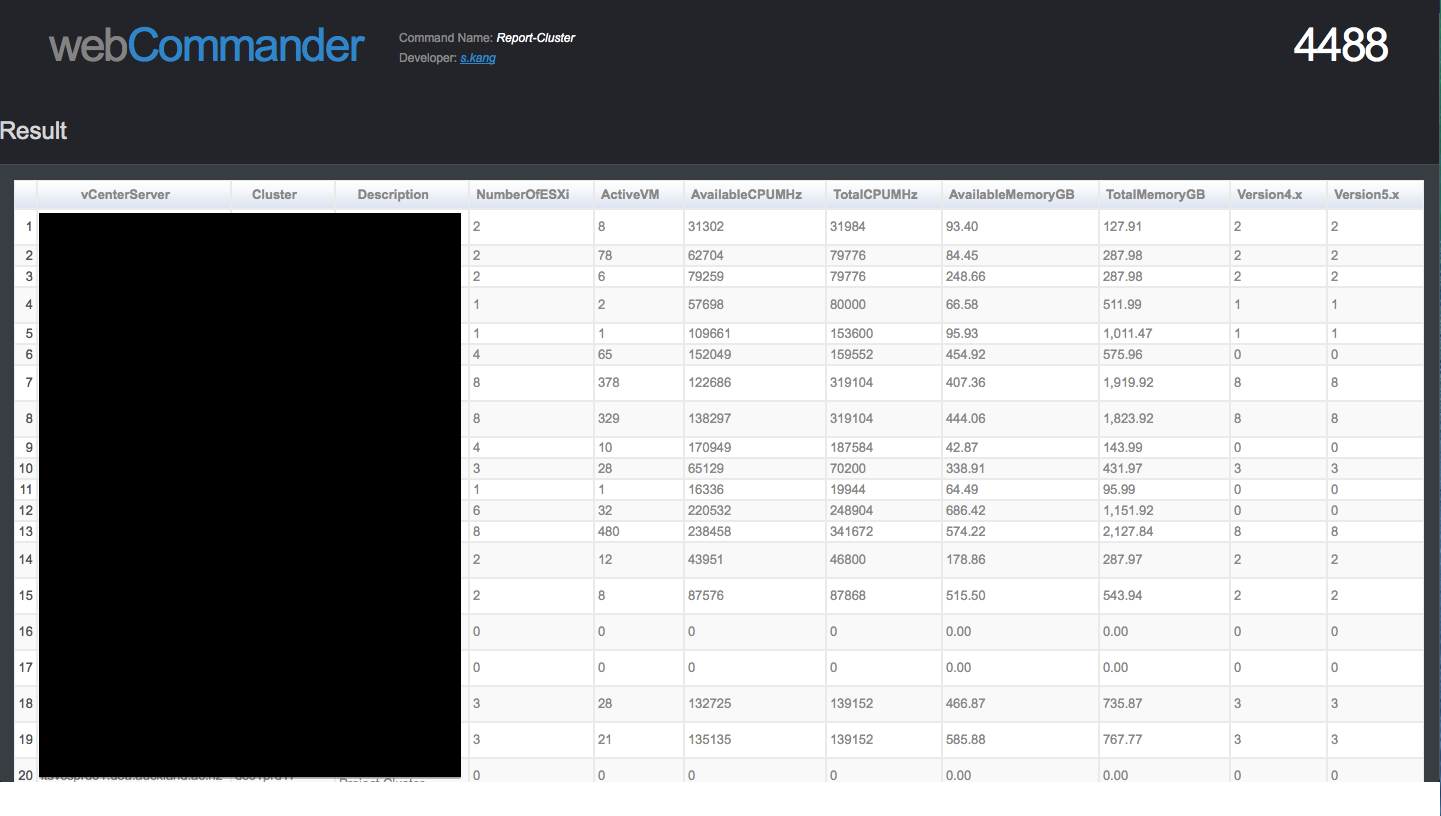
On the webCommander home page, when you click Report-Cluster icon, it will bypass parameter checking bit and show you the report instantly. Attaching a sample result:
Screen Shot 2014-06-16 at 3.34.51 pm

Wrap Up

I think this is not the best way of creating a static page. I believe Jerry (@9whirls) could develop it in a better way, maybe in the next release. In future, it will be possible to create few more functions such as download the output as .csv, send it via email…etc

Another work could be done is that instead of exporting/importing .csv file, using a proper database could be a possible option. I used IBM DB2 to store historical data using PowerCLI in the past and I am sure it could be used in this case as well.

Hope you enjoy and ping me for any questions.