PowerCLI Report Tip – Part 3

Introduction

For PowerCLI tip part 3, it will be going through advanced reporting using ESXCLI.

For the contents below, the version of ESXi server used was 5.5 No Update.

What’s ESXCLI?

I suggest you to go and read the following blogs:

Why ESXCLI For Reporting?

PowerCLI itself already has most of the functions to generate a report. However, there are some ESXCLI commands that could be used to produce a report in a faster and easier way. This will be discussed in the later sections with specific examples (scenarios).

In this blog post, there will be two examples discussed:

  1. Storage 
  2. Network & Firewall

Preparation

Before starting, one of the advantages of running ESXCLI through PowerCLI is that SSH does not have to be enabled. But, it requires certain roles so might as well run it with Read-Only account and add permissions accordingly.

First of all, let’s run and save ESXCLI to a variable $esxcli = Get-VMHost -Name “ESXi” | Get-ESXCLi. Then, calling $esxcli will output the following:

PowerCLI C:\> $esxcli
===============================
EsxCli: esx01.test.com

Elements:
---------
device
esxcli
fcoe
graphics
hardware
iscsi
network
sched
software
storage
system
vm
vsan

The output looks very similar to running ESXCLI on ESXi shell. The difference is, for example, if you want to call storage object, then you run $esxcli.storage. No space in between, i.e. esxcli storage. 

With the preparation work above, we are ready to go through some examples! 🙂

Storage

Let’s give an example. There is a request from storage team to generate a report across all VMFS volumes (mapped with FC disk), literally same as the following screenshot:
PowerCLI Report Tip #3 1
 

NOTE: For the report below, I am assuming the virtual disks from storage array are mapped to all ESXi servers in a cluster (Well I guess this is usual for most of people to benefit from HA/DRS).

Looking at above screenshot, the report should contain:

  • Cluster
  • Adapter, e.g. vmhba2 or vmhba3
  • Device, i.e. UID
  • TargetIdentifier, e.g. 50:05:07……
  • RuntimeName, e.g. C0:T1:L11
  • LUN, e.g. 11
  • State, e.g. Active

Using ESXCLI, it could be achieved quite simply.  Assuming you already have saved ESXCLI value to a variable $esxcli, save the following to variables accordingly:

  • $esxcli.storage.core.path.list()
    • It outputs the list of all paths of storage devices attached to this ESXi server.
  • $esxcli.storage.core.device.list()
    • It outputs the list of all storage devices attached to this ESXi server.

Then, using the device list, filter it to query only Fibre Channel devices and for each of them, if the list of path match to this device, select elements.

Combining above it becomes:

$path_list = $esxcli.storage.core.path.list()
$device_list = $esxcli.storage.core.device.list()
$vmfs_list = $esxcli.storage.vmfs.extent.list() 
$cluster = Get-Cluster -VMHost (Get-VMHost -Name $esxcli.system.hostname.get().FullyQualifiedDomainName)

$device_list | where {$_.DisplayName -match "Fibre Channel"} | ForEach-Object { $device = $_.Device; $path_list | where {$_.device -match $device} | select @{N=“Cluster”;E={$cluster.Name}}, Adapter, Device, TargetIdentifier, RuntimeName, LUN, State }

Example Output:

Cluster : Development
Adapter : vmhba3
Device : naa.60050768018d8303c000000000000003
TargetIdentifier : fc.5005076801000002:5005076801100002
RuntimeName : vmhba3:C0:T0:L11
LUN : 11
State : active

Cluster : Development
Adapter : vmhba3
Device : naa.60050768018d8303c000000000000003
TargetIdentifier : fc.5005076801000001:5005076801100001
RuntimeName : vmhba3:C0:T1:L11
LUN : 11
State : active 

Cluster : Development
Adapter : vmhba2
Device : naa.60050768018d8303c000000000000003
TargetIdentifier : fc.5005076801000002:5005076801200002
RuntimeName : vmhba2:C0:T0:L11
LUN : 11
State : active

Cluster : Development
Adapter : vmhba2
Device : naa.60050768018d8303c000000000000003
TargetIdentifier : fc.5005076801000001:5005076801200001
RuntimeName : vmhba2:C0:T1:L11
LUN : 11
State : active

Quite easy, isn’t it?

Another example: virtualisation team manager asked for virtual disks (FC type) that are attached to ESXi servers but not formatted as VMFS. To make it more specific, he was expecting the following:

  • Cluster
  • Device
  • Device file system path
  • Display Name
  • Size

With the report above, it would be very handy to identify which virtual disks are being wasted.

Using ESXCLI, above report could be accomplished simply. Save the following to variables accordingly:
  • $esxcli.storage.core.path.list()
    • It outputs the list of all paths of storage devices attached to this ESXi server.
  • $esxcli.storage.vmfs.extent.list()
    • It outputs the list of all storage devices partitioned (formatted) with VMFS volumes attached to this ESXi server.

Using device list, run a where filter to:

  • Make sure this device is not formatted as VMFS
    • I used -match against all VMFS volumes joined by | which means or
  • The type is Fibre Channel

Combining above, it will become:

$device_list = $esxcli.storage.core.device.list()
$vmfs_list = $esxcli.storage.vmfs.extent.list()
$cluster = Get-Cluster -VMHost (Get-VMHost -Name $esxcli.system.hostname.get().FullyQualifiedDomainName)

$device_list | where {$_.Device -notmatch ([string]::Join("|", $vmfs_list.DeviceName)) -and $_.DisplayName -match "Fibre Channel" } | select @{N="Cluster";E={$cluster.Name}}, Device, DevfsPath, DisplayName, @{N="Size (GB)";E={$_.Size / 1024}}

Example Attached:

Cluster : Development
Device : naa.60050768018d8303c000000000000006
DevfsPath : /vmfs/devices/disks/naa.60050768018d8303c000000000000006
DisplayName : IBM Fibre Channel Disk (naa.60050768018d8303c000000000000006)
Size (GB) : 128
Hope the examples above were easy to follow and let us move on to Network.

Network

In this Network section, I will be giving two examples with:

  1. Firewall
  2. LACP

Let’s start with Firewall.

One of the VMware administrators deployed vRealize Log-Insight and before configuring ESXi servers to point to Log-Insight, he wanted to check the allowed IP addresses configured before and remove them in advance. It was configured to restrict access to syslog server for security purpose.

This time, it will be using $esxcli.network.firewall command. First of all, save the list of ruleset with allowedIP addresses:

  • $esxcli.network.firewall.ruleset.allowedip.list()

Then, use the filter to query only syslog service. Combining above:

$esxi= $esxcli.system.hostname.get().FullyQualifiedDomainName
$ruleset_list = $esxcli.network.firewall.ruleset.allowedip.list() 
$ruleset_list | where {$_.ruleset -eq "syslog"} | select @{N="ESXi";E={$esxi}}, Ruleset, AllowedIPAddresses

Example output:

ESXi : esx01.test.com
Ruleset : syslog
AllowedIPAddresses : {10.10.1.10}

Another example: network team wanted an output from ESXi servers to check the following:

  1. Check the status of LACP DUs, i.e. transmit/receive and see if there are any errors
  2. Check LACP configuration, especially the LACP period. Either fast or slow

I wrote an article about Advanced LACP Configuration using ESXCLI, I suggest you to read it if not familiar with LACP configuration on ESXi.

Similar to above, save the LACP stats to a variable and select the following:

  • Name of ESXi
  • Name of dvSwitch
  • NIC, e.g. vmnic0
  • Receive errors
  • Received LACPDUs
  • Transmit errors
  • Transmitted LACPDUs

And the script would be:

$esxi= $esxcli.system.hostname.get().FullyQualifiedDomainName
$lacp_stats = $esxcli.network.vswitch.dvs.vmware.lacp.stats.get()
$lacp_stats | select @{N="ESXi";E={$esxi}}, DVSwitch, NIC, RxErrors, RxLACPDUs, TxErrors, TxLACPDUs

Example Output:

ESXi : esx01.test.com
DVSwitch : dvSwitch_Test
NIC : vmnic1
RxErrors : 0
RxLACPDUs : 556096
TxErrors : 0
TxLACPDUs : 555296
ESXi : esx01.test.com
DVSwitch : dvSwitch_Test
NIC : vmnic0
RxErrors : 0
RxLACPDUs : 556096
TxErrors : 0
TxLACPDUs : 555296

For the configuration report, you might be interested in Fast/Slow LACP period as mentioned above.

Similarly, save the LACP status output to a variable. Then for each object pointing to NicList, select the following:

  • Name of ESXi server
  • Name of dvSwitch
  • Status of LACP
  • NIC, e.g. vmnic0
  • Flag Description
  • Flags

Combining above:

$esxi= $esxcli.system.hostname.get().FullyQualifiedDomainName
$information = $esxcli.network.vswitch.dvs.vmware.lacp.status.get()

$information.NicList | ForEach-Object { $_ | Select @{N="ESXi";E={$esxi}}, @{N="dvSwitch";E={$information.dvSwitch}}, @{N="LACP Status";E={$information.Mode}}, Nic, @{N="Flag Description";E={$information.Flags}}, @{N="Flags";E={$_.PartnerInformation.Flags}} }

Example Output:

ESXi : esx01.test.com
dvSwitch : dvSwitch_Test
LACP Status : Active
Nic : vmnic1
Flag Description : {S - Device is sending Slow LACPDUs, F - Device is sending fast LACPDUs, A - Device is in active mode, P - Device is in passive mode}
Flags : SA

ESXi: esx01.test.com
dvSwitch : dvSwitch_Test
LACP Status : Active
Nic : vmnic0
Flag Description : {S - Device is sending Slow LACPDUs, F - Device is sending fast LACPDUs, A - Device is in active mode, P - Device is in passive mode}
Flags : SA

With the report above, network team could find out which ESXi server is configured with Fast or Slow so that they could configure the LACP accordingly (LACP period mis-match is not good!).

Wrap-Up

In this blog post, it discussed the way of using ESXCLI command to generate an advanced report. I didn’t go through properties deeply as I discussed in Part 2 and you could slowly take a look properties on your own.

Hope it was easy enough to follow and understand. On the next series, I will be discussing how to use PLINK to generate a combined report with ESXi and non ESXi.

Always welcome for for you to leave a reply for any questions or clarifications.

vSphere Migration Scenario #3

Introduction

We’ve been running vCenter Server version 5.1 and two vCenter Servers version 5.5 for almost two years. Managers decided to decommission vCenter Server 5.1 as it contained only a few clusters. The work I was involved in is to migrate clusters from vCenter Server 5.1 to vCenter Server 5.5. During the migration work, I noticed a few interesting behaviours and in this blog post, I will be going through:

  • Issues
  • Solutions
  • Workarounds

Environment

The following is the production vSphere environment I worked on:

Two vCenter Servers

  • Destination vCenter Server 5.5 No Update
    • vcs5.5
  • Source vCenter Server 5.1 No Update
    • vcs5.1

2 x ESXi Servers 5.1

  • esxi5.1_A
  • esxi5.1_B

2 x dvSwitches 5.0 Version

  • dvSwitch_VM_Network
    • 2 x 10Gbe
    • NIOC enabled with a custom resource pool
    • It is mapped to one portgroup
  • dvSwitch_iSCSI_Network
    • 2 x 10Gbe
    • NIOC disabled

Requirement

Same as previous migration scenarios, no outage allowed. A few packet drops are acceptable.

Risk

Migration of Software iSCSI VMKernels configured on dvSwitch_iSCSI_Network.

Mitigation

Import/Export dvSwitch_iSCSI_Network and corresponding portgroups maintaining identifiers to vcs5.5.

Issues & Solutions

Initial migration plan I came up with is the following:

  1. Export dvSwitch_VM_Network & dvSwitch_iSCSI_Network and import them to vCenter Server 5.5 (pre-work)
  2. Create a new cluster in vcs5.5, same configuration as in vcs5.1
  3. Disable HA & DRS on the cluster
  4. Disconnect & remove esxi5.1_A & esxi5.1_B from vcs5.1
  5. Register esxi5.1_A & esxi5.1_B to the cluster in vcs5.5
  6. Migrate dvSwitches, dvSwitch_VM_Network and dvSwitch_iSCSI_Network to the imported ones in vcs5.5
  7. Enable HA & DRS on the cluster
  8. Delete the cluster instance in vcs5.1
  9. Repeat the steps above for the rest of clusters

For step 1, because it doesn’t affect production system, I decided to do it before the change. The reason we would want to preserve original distributed switch and port group identifiers (mentioned in mitigation above) is to make sure the ESXi servers at destination vCenter Server picks up the new dvSwitch without any interruptions. Since there are iSCSI VMKernels mapped to the dvSwitch_iSCSI_Network, migration of bounded iSCSI VMKernels to another dvSwitch in live won’t be allowed. This is the main reason of preserving original identifiers. During exporting dvSwitch configuration from vCenter Server 5.1 and importing it to 5.5 vCenter Server, it caused an error with the following message:

VM Migration Scenario #3

Looking at the vCenter Log located under ProgramData… folder:

2015-01-12T15:18:39.937+13:00 [05388 error 'corevalidate' opID=2f3dc91a] [Validate::CheckLacpFeatureCapability] LACP is not supported on DVS [dvSwitch_VM_Network] 
2015-01-12T15:18:39.937+13:00 [04620 info 'commonvpxLro' opID=E7F30A2D-0004F88E-7e] [VpxLRO] -- FINISH task-internal-33360670 -- -- vmodl.query.PropertyCollector.retrieveContents -- 
2015-01-12T15:18:39.937+13:00 [05388 error 'dvsvpxdMoDvsManager' opID=2f3dc91a] [MoDvsManager::CreateNewEntity] Import Failed while creating DVS from Backup with key[51 4d 2d 50 93 51 73 6b-46 47 d0 fa 09 af 88 fc]. Fault:[vmodl.fault.NotSupported] 
2015-01-12T15:18:39.937+13:00 [05388 error 'dvsvpxdMoDvsManager' opID=2f3dc91a] [MoDvsManager::CreateNewEntity] Import Failed while creating DVPG from Backup with key[dvportgroup-62]. Fault:[vim.fault.NotFound] 
2015-01-12T15:18:39.937+13:00 [05388 error 'dvsvpxdMoDvsManager' opID=2f3dc91a] [MoDvsManager::CreateNewEntity] Import Failed while creating DVPG from Backup with key[dvportgroup-66]. Fault:[vim.fault.NotFound] 
2015-01-12T15:18:39.937+13:00 [05388 error 'dvsvpxdMoDvsManager' opID=2f3dc91a] [MoDvsManager::CreateNewEntity] Import Failed for some hosts 
2015-01-12T15:18:39.937+13:00 [05388 info 'commonvpxLro' opID=2f3dc91a] [VpxLRO] -- FINISH task-290085 -- -- vim.dvs.DistributedVirtualSwitchManager.importEntity -- 
2015-01-12T15:18:39.937+13:00 [05388 info 'Default' opID=2f3dc91a] [VpxLRO] -- ERROR task-290085 -- -- vim.dvs.DistributedVirtualSwitchManager.importEntity: vim.fault.NotFound: --> Result: --> (vim.fault.NotFound) { --> dynamicType = <unset>, --> faultCause = (vmodl.MethodFault) null, --> faultMessage = (vmodl.LocalizableMessage) [ --> (vmodl.LocalizableMessage) { --> dynamicType = <unset>, --> key = "com.vmware.vim.vpxd.dvs.notFound.label", --> arg = (vmodl.KeyAnyValue) [ --> (vmodl.KeyAnyValue) { --> dynamicType = <unset>, --> key = "type", --> value = "DVS", --> }, --> (vmodl.KeyAnyValue) { --> dynamicType = <unset>, --> key = "value", --> value = "51 4d 2d 50 93 51 73 6b-46 47 d0 fa 09 af 88 fc", --> } --> ], --> message = <unset>, --> } --> ], --> msg = "" --> } --> Args: -->

Could find a related KB article and this was the known bug in vCenter Server 5.1 No Update. According to the resolution field, it was fixed in either vCenter Server 5.1 Update 2 or 5.5. So, I raised another change in advance to upgrade vCenter Server to 5.1 Update 2. Even though the vCenter Server was upgraded to 5.1 Update 2, no luck. Consulting VMware Support, upgrading the version of dvSwitch to 5.1 was required. Once dvSwitch was upgraded, import/export worked without a problem. After this pre-work, I was quite confident with the rest of migration work. On the day of work, I disconnected/removed esxi5.1_A from the source cluster and added to the cluster in vcs5.5. The next step was to rejoin esxi5.1_A to the dvSwitch imported in vcs5.5. Before doing this work, I was constantly pinging a few virtual machines and ESXi server to ensure there is no outage. VM Migration Scenario #3 1 The work was quite simple:

  1. Navigate to Networking View
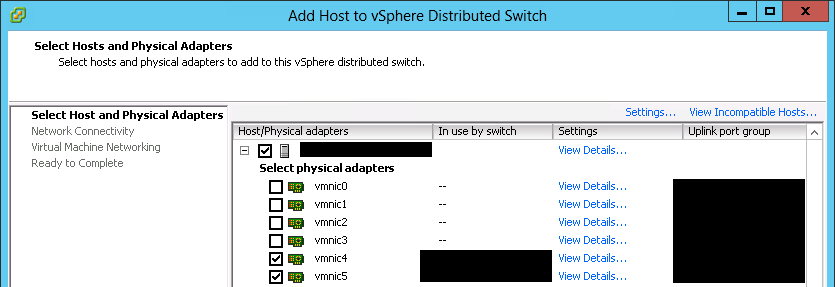
  2. Right-click on dvSwitch_VM_Network and click Add Host

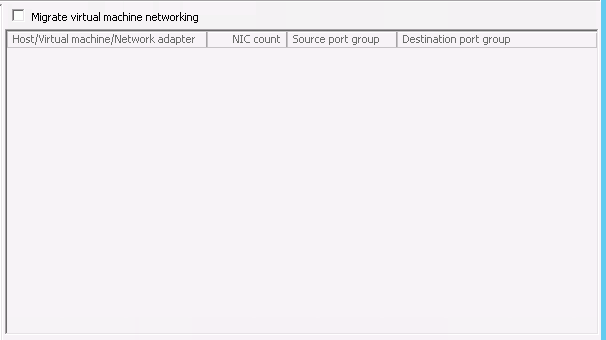
VM Migration Scenario #3 2 Ignore migrating VMKernels and VM Network, click next and finish VM Migration Scenario #3 3 VM Migration Scenario #3 4

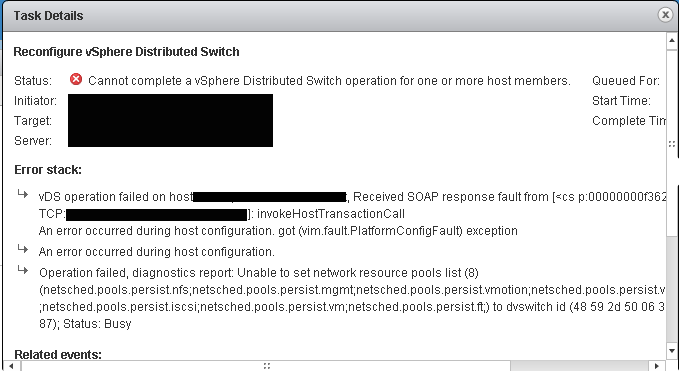
Yup – another issue happened. Error messages attached below:

vDS operation failed on host prod.esxi.com, Received SOAP response fault from [<cs p:00000000f3627820, 
TCP:prod.esxi.com:443>]: invokeHostTransactionCall
An error occurred during host configuration. got (vim.fault.PlatformConfigFault) exception
An error occurred during host configuration.
Operation failed, diagnostics report: Unable to set network resource pools list (8) 
(netsched.pools.persist.nfs;netsched.pools.persist.mgmt;netsched.pools.persist.vmotion;netsched.pools.persist.vsan;netsched.pools.persist.hbr;netsched.pools.persist.iscsi;netsched.pools.persist.vm;netsched.pools.persist.ft;) to dvswitch id (48 59 2d 50 06 30 c4 39-96 74 bb 0e c1 73 fc 87); Status: Busy

Screenshot:

VM Migration Scenario #3 6

Investigating the log, looked like the dvSwitch imported to vcs5.5 had an issue with network resource pool, i.e. NIOC. Gotcha – NIOC custom resource wasn’t completely imported. Hence, I created one (exact same configuration as defined in vcs5.1) and mapped it to the appropriate portgroup. However, there was no luck, still had the same issue as above. I guess the configuration had to be imported instead of the user manually creating them.

Work Around

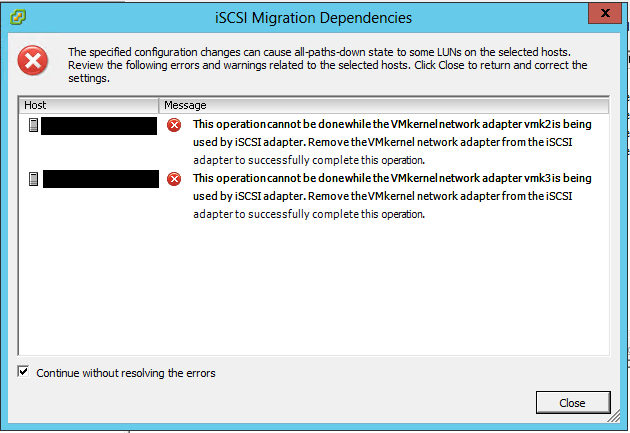
I guessed that the virtual machines using the portgroup with custom resource is causing the issue. One attempt I made was to update dvSwitch on the ESXi server on maintenance mode, i.e. virtual machines running. I was correct – if there are no virtual machines at all, dvSwitch update was successful. Once this was done, the next update required was dvSwitch_iSCSI_Network. Expected behaviour, “migration of iSCSI VMKernels can cause APD state to some LUNs”, as attached below. However, since we maintained identifiers of dvSwitch and portgroups, it was safe to continue without resolving the errors: VM Migration Scenario #3 7

After the work on esxi5.1_A, migrated esxi5.1_B to vcs5.5 and placed it on maintenance mode to evacuate virtual machines to esxi5.1_A. Once vMotion was finished, updated dvSwitch and It was successful!

Final Migration Plan

The following is the final migration plan:

  1. Export dvSwitch_VM_Network & dvSwitch_iSCSI_Network and import them to vcs5.5 (pre-work)
  2. Ensure vCenter Server is 5.1 Update 2 or above on the source
  3. Create a new cluster in vcs5.5, same configuration as in vcs5.1
  4. Disable HA & DRS on the cluster in vcs5.1
  5. Place esxi5.1_A on maintenance mode
  6. Disconnect & remove esxi5.1_A vcs5.1 and register it in vcs5.5 cluster
  7. Re-join esxi5.1_A to dvSwitch_VM_Network and dvSwitch_iSCSI_Network in vcs5.5
  8. Place esxi5.1_B on maintenance mode
  9. Disconnect & remove esxi5.1_B vcs5.1 and register it in vcs5.5 cluster
  10. Exit esxi5.1_A and esxi5.1_B maintenance mode
  11. Enable DRS only to fully automated
  12. Place esxi5.1_B on maintenance mode
  13. Once done, Re-join esxi5.1_B to dvSwitch_VM_Network and dvSwitch_iSCSI_Network to the imported ones in vcs5.5
  14. Enable HA on the cluster in vcs5.5
  15. Delete the cluster instance in vcs5.1
  16. Repeat above for the rest of clusters

Recommended Post Work

I think it is a bug that I am facing, ESXi servers migrated don’t recognise current Network settings, screenshot attached below: VM Migration Scenario #3 5

There is no problem with selecting portgroups on VM configuration but I found that if these ESXi servers are part of vCAC and trying to create reservations, network adapters didn’t show up 😦 I recommend you to restart vCenter Server as it fixes the issue above (do not tell me you have vCenter Heartbeat installed!).

Wrap-Up

Hope the real life migration scenario described above helps and if you want other examples, they could be found on the following:

More than welcome if you’ve got any questions or clarifications.
PowerCLI Report Tip – Part 2

Introduction

In this blog post, I will be deep-diving into the following to improve your report:

  • Select *
  • ExtensionData (also known as Get-View)

This is the second series continued from Part 1 which could be found here.

Select *

Select is used to filter an output. For example, Get-VM | Select Name, NumCPU, MemoryGB would give you 3 properties only. What would Select * give you? In regular expression world ,* normally means “everything” and the output is attached below:

PowerState : PoweredOn
Version : v9
Description :
Notes :
Guest : testVM
NumCpu : 4
MemoryMB : 2048
MemoryGB : 2
HardDisks : {Hard disk 1}
NetworkAdapters : {Network adapter 1}
UsbDevices : {}
CDDrives : {CD/DVD drive 1}
FloppyDrives : {Floppy drive 1}
Host : esxi1.test.com
HostId : HostSystem-host-19843
VMHostId : HostSystem-host-19843
VMHost : esxi1.test.com
VApp :
FolderId : Folder-group-v23748
Folder : TestFolder
ResourcePoolId : ResourcePool-resgroup-22471
ResourcePool : Resources
PersistentId : 501c2be6-da23-928f-7d58-e278c8a2cf62
UsedSpaceGB : 102.13691748306155204772949219
ProvisionedSpaceGB : 102.13691792357712984085083008
DatastoreIdList : {Datastore-datastore-24700}
HARestartPriority : ClusterRestartPriority
HAIsolationResponse : AsSpecifiedByCluster
DrsAutomationLevel : AsSpecifiedByCluster
VMSwapfilePolicy : Inherit
VMResourceConfiguration : CpuShares:Normal/4000 MemShares:Normal/20480
GuestId : debian6Guest
Name : testVM
CustomFields :
ExtensionData : VMware.Vim.VirtualMachine
Id : VirtualMachine-vm-25976
Uid : /VIServer=administrator@vcenter.test.com:443/VirtualMachine=VirtualMachine-vm-25976/
Client : VMware.VimAutomation.ViCore.Impl.V1.VimClient

The reason I wanted to go through Select * is to show you guys that Get-VM function itself has a lot of properties already. Let’s take a look at a report below:

ESXi,ResourcePool,VM,CPU,Memory
ESXi_test1,RP1,test1,1,1
ESXi_test1,RP2,test2,1,1
ESXi_test2,RP2,test3,1,4

Without knowing the properties well, to generate the report above, some might come up with a script like the following:

foreach ($vm in Get-VM) {
 $resourcepool = Get-ResourcePool -VM $vm
 $esxi = Get-VMHost -VM $vm
 $vm | Select @{N=“ESXi”;E={$esxi.Name}}, @{N=“ResourcePool”;E={$resourcepool.Name}}, Name, NumCPU, MemoryGB
}

The above script looks good, it has no problem. But looking at properties, some of them could actually be retrieved from Get-VM, i.e. without running the commands Get-ResourcePool and Get-VMHost. Let’s do some performance testing. For the testing, I selected a cluster with 300 virtual machines and with the script above, it has taken 62 minutes. Suppose there are 10000 virtual machines, I do not want to imagine that. Using the properties already queried (script attached below), it improved the script significantly. It took 28 seconds. Seconds, not minutes!

Get-VM | Select @{N=“ESXi”;E={$_.VMHost.Name}}, @{N=“ResourcePool”;E={$_.ResourcePool}}, Name, NumCPU, MemoryGB

The point here I made is that since Get-VM itself already runs Get-ResourcePool, Get-VMHost, do not run them again! Otherwise, it will significantly reduce the performance of your script. It’s not only for Get-VM, it could be Get-Cluster, Get-VMHost and so on. I strongly recommend you to get familiar with properties.

ExtensionData

ExtensionData, also known as Get-View is another property that I would want to talk about. I will take Get-VMHost as an example this time and the following two commands produce the same output:

  • Get-VMHost -Name esxi1.test.com | Get-View
  • (Get-VMHost -Name esxi1.test.com).ExtensionData
Runtime : VMware.Vim.HostRuntimeInfo
Summary : VMware.Vim.HostListSummary
Hardware : VMware.Vim.HostHardwareInfo
Capability : VMware.Vim.HostCapability
LicensableResource : VMware.Vim.HostLicensableResourceInfo
ConfigManager : VMware.Vim.HostConfigManager
Config : VMware.Vim.HostConfigInfo
Vm : {VirtualMachine-vm-7950, VirtualMachine-vm-7941, VirtualMachine-vm-4299, VirtualMachine-vm-4583...}
Datastore : {Datastore-datastore-3500, Datastore-datastore-3501, Datastore-datastore-3502, Datastore-datastore-3503...}
Network : {DistributedVirtualPortgroup-dvportgroup-7890, DistributedVirtualPortgroup-dvportgroup-4523, DistributedVirtualPortgroup-dvportgroup-4580, DistributedVirtualPortgroup-dvportgroup-3272...}
DatastoreBrowser : HostDatastoreBrowser-datastoreBrowser-host-7674
SystemResources : VMware.Vim.HostSystemResourceInfo
LinkedView :
Parent : ClusterComputeResource-domain-c3265
CustomValue : {}
OverallStatus : green
ConfigStatus : green
ConfigIssue : {}
EffectiveRole : {285213786}
Permission : {}
Name : esxi1.test.com
DisabledMethod : {ExitMaintenanceMode_Task, PowerUpHostFromStandBy_Task, ReconnectHost_Task}
RecentTask : {}
DeclaredAlarmState : {alarm-1.host-7674, alarm-12.host-7674, alarm-13.host-7674, alarm-14.host-7674...}
TriggeredAlarmState : {}
AlarmActionsEnabled : True
Tag : {}
Value : {}
AvailableField : {}
MoRef : HostSystem-host-7674
Client : VMware.Vim.VimClientImpl

It looks quite complex but actually it’s not. Let us take a look at one example:

  • (Get-VMHost -Name esxi1.test.com).ExtensionData.Hardware
SystemInfo : VMware.Vim.HostSystemInfo
CpuPowerManagementInfo : VMware.Vim.HostCpuPowerManagementInfo
CpuInfo : VMware.Vim.HostCpuInfo
CpuPkg : {0 1 2 3 4 5 6 7 8 9 10 11, 12 13 14 15 16 17 18 19 20 21 22 23}
MemorySize : 206144823296
NumaInfo : VMware.Vim.HostNumaInfo
SmcPresent : False
PciDevice : {00:00.0, 00:01.0, 00:03.0, 00:04.0...}
CpuFeature : {VMware.Vim.HostCpuIdInfo, VMware.Vim.HostCpuIdInfo, VMware.Vim.HostCpuIdInfo, VMware.Vim.HostCpuIdInfo...}
BiosInfo : VMware.Vim.HostBIOSInfo
ReliableMemoryInfo :
DynamicType :
DynamicProperty :

The output above is representing hardware details of this ESXi server. Isn’t it surprising? Single PowerCLI command could generate a report with a lot of information if you know the properties well enough.

This is how you generate advanced reports and it’s quite simple to achieve that – get familiar with properties especially ExtensionData. I will leave the rest to you guys to play with, such as BiosInfo, SystemInfo and so on.

Wrap-Up

Throughout the blog, it discussed:

  • Taking a closer look at Select * to avoid running repeated commands
  • Generating advanced reports with ExtensionData

Hope this helps and on the next series, I will be deep-diving into esxcli