PowerCLI Report – vMSC Health Check

Introduction

I recently wrote a PowerCLI script to check the health state of Metro Storage Cluster. The intention of this script is to:

  • Ensure the cluster setting’s correct
  • Check compute resources on each datacenters
  • Check uniform access
  • Check DRS group

Throughout this post, it will be going over the script & explanation and sample output.

One assumption is that this report is for uniform access design.

Script

As mentioned in the introduction, the script consists of 4 reports. The first one will show the cluster configuration:

  1. Admission control policy enabled?
  2. Admission control policy CPU/Memory
  3. Isolation Addresses
  4. Number of Heartbeat datastores
  5. List of Heartbeat datastores

This will allow the administrators to check and make sure the cluster setting is correct.

The second one is the resource report. This will represent CPU/Memory usage of ESXi servers of each datacenter that will help administrators to decided which datacenter needs to be used when deploying virtual machines to balance out the resource usage.

The third one is the uniform check report. The purpose of this report is to ensure that virtual machines are uniformly accessing ESXi servers as well as datastores. For example, if a virtual machine is running in site 1 but using datastore(s) in site 2, it introduces extra latency between the virtual machine and datastore. DRS rule should handle this but if the virtual machine is not in DRS group or somehow DRS didn’t do the job, it has to be corrected manually.

Lastly, DRS group report. Any virtual machines not in DRS group will be shown. It will list ESXi and datastore(s) so that administrators know which DRS group to put in.

In this script, there are inputs to be replaced, in bold and underline:

  • vCenter server, username and password
  • Cluster name
  • Site expression, 1 and 2. This totally depends on your naming convention, an example is below
    • “s1|site1”
    • “s2|site2”
  • Mail settings

This script is per cluster base so if you have more than 1 cluster, it will be required to run the script multiple times. Attached below:

Connect-VIServer -Server "vCenter Address" -User "vCenter User" -Password "vCenter User Password"

$cluster = Get-Cluster -Name "Cluster Name"
$site_1_expression = "^s1|^site1"
$site_2_expression = "^s2|^site2"
$esxi_list = Get-VMHost -Location $cluster
$datastore_list = Get-Datastore -VMHost $esxi_list
$virtual_machine_list = Get-VM -Location $cluster | Sort Name
$drs_group_list = $cluster.ExtensionData.Configurationex.Group | ?{$_.VM}

$configuration_report = @()
$resource_report = @()
$uniform_report = @()
$drs_report = @()

## 1st Report
## Cluster Settings

$heartbeat_datastore_list = $cluster.ExtensionData.Configuration.DasConfig.HeartbeatDatastore.value | ForEach-Object { $id = $_; $datastore_list | where {$_.id -replace "datastore_list-" -match $id } | %{$_.Name} } 

$configuration_report = $cluster | select @{N="Cluster";E={$_.Name}}, 
                                          @{N="Admission Control Policy";E={$_.ExtensionData.Configuration.DasConfig.AdmissionControlEnabled}},
                                          @{N="Admission Control Policy CPU";E={$_.ExtensionData.Configuration.DasConfig.AdmissionControlPolicy.CpuFailoverResourcesPercent}}, 
                                          @{N="Admission Control Policy Memory";E={$_.ExtensionData.Configuration.DasConfig.AdmissionControlPolicy.MemoryFailoverResourcesPercent}},
                                          @{N="Isolation Addresses";E={[string]::Join(",", ($_.ExtensionData.Configuration.DasConfig.Option | where {$_.Key -match "isolation"} | %{$_.Value}))}},
                                          @{N="Heartbeat Datastore #";E={$_.ExtensionData.Configuration.DasConfig.Option | where {$_.Key -match "heartbeat"} | %{$_.Value}}},
                                          @{N="Heartbeat Datastore";E={[string]::Join(",", ($heartbeat_datastore_list))}}


## 2nd Report
## Resource Compute Usage

$resource_report = "" | select @{N="Site1 CPU Usage";E={ "{0:P1}" -f ( (($esxi_list | where {$_.Name -match $site_1_expression}).CpuUsageMHz | Measure-Object -Sum).Sum / (($esxi_list | where {$_.Name -match $site_1_expression}).CpuTotalMHz | Measure-Object -Sum).Sum ) }},
                               @{N="Site1 Memory Usage";E={ "{0:P1}" -f ( (($esxi_list | where {$_.Name -match $site_1_expression}).MemoryUsageGb | Measure-Object -Sum).Sum / (($esxi_list | where {$_.Name -match $site_1_expression}).MemoryTotalGB | Measure-Object -Sum).Sum ) }},
                               @{N="Site2 CPU Usage";E={ "{0:P1}" -f ( (($esxi_list | where {$_.Name -match $site_2_expression}).CpuUsageMHz | Measure-Object -Sum).Sum / (($esxi_list | where {$_.Name -match $site_2_expression}).CpuTotalMHz | Measure-Object -Sum).Sum ) }},
                               @{N="Site2 Memory Usage";E={ "{0:P1}" -f ( (($esxi_list | where {$_.Name -match $site_2_expression}).MemoryUsageGb | Measure-Object -Sum).Sum / (($esxi_list | where {$_.Name -match $site_2_expression}).MemoryTotalGB | Measure-Object -Sum).Sum ) }} 

## 3rd/4th Report
## DRS Group Report & Uniform Report

foreach ($vm in $virtual_machine_list) {
    $esxi = $vm.VMHost.Name

  $datastore = $vm.DatastoreIdList | Foreach-Object {
        $datastore_id = $_
        $datastore_list | where {$_.id -match $datastore_id} | %{$_.Name}
    }

    foreach ($d in $datastore) { 
        if ( ($esxi -match $site_1_expression -and $d -match $site_1_expression) ) {
            $uniform = "Yes"
        } elseif ( ($esxi -match $site_2_expression -and $d -match $site_2_expression) ) {
            $uniform = "Yes"
        } else {
            $uniform = "No"
            break
        }
    }
    
    $drs_group = $drs_group_list | where {$_.VM -eq $vm.id} | %{$_.Name}

    if (!$drs_group) {
        $drs_group = "No DRS Group"
        
        $drs_report += ("" | select    @{N="VM";E={$vm.Name}},
                                       @{N="ESXi";E={$esxi}},
                                       @{N="VMFS";E={[string]::Join(",", $datastore)}},
                                       @{N="DRS Group";E={$drs_group}} )    
    }
    
    if ($uniform -eq "No") {         
        $uniform_report += ("" | select @{N="VM";E={ $vm.Name }},
                                        @{N="ESXi";E={$esxi}},
                                        @{N="VMFS";E={ [string]::Join(",", $datastore) }},
                                        @{N="DRS Group Name";E={ $drs_group }},
                                        @{N="Uniform Access";E={ $uniform }} )
    }
}    

$header = @"
    <style>
    TABLE {border-width: 1px;border-style: solid;border-color: black;border-collapse: collapse;}
    TH {border-width: 1px;padding: 3px;border-style: solid;border-color: black;background-color: #6495ED;}
    TD {border-width: 1px;padding: 3px;border-style: solid;border-color: black;}
    </style>
"@

$body = "<h1>VMware Metro Storage Cluster Health Check</h1>"
$body += "<h2>Configuration Report</h2>" + ($configuration_report | ConvertTo-HTML -Head $header | Out-String)
$body += "<h2>Resource Report</h2>" + ($resource_report | ConvertTo-HTML -Head $header | Out-String)
$body += "<h2>Uniform Check Report</h2>"

if ($uniform_report.count -eq 0) {
  $uniform_report = "All virtual machines are uniformly accessing ESXi servers and VMFS volumes"
    $body += ConvertTo-HTML -Body $uniform_report | Out-String
} else {
    $body += "<h3>Please correct the following virtual machines</h3>"
    $body += $uniform_report | Sort VM | ConvertTo-HTML -Head $header | Out-String
}

$body += "<h2>DRS Group Report</h2>"
if ($drs_report.count -eq 0) { 
    $drs_report = "All virtual machines are in correct DRS groups"
    $body += ConvertTo-HTML -Body $drs_report | Out-String
} else {
    $body += "<h3>Please put the following virtual machines in appropriate DRS groups</h3>"
    $body += $drs_report | Sort VM | ConvertTo-HTML -Head $header | Out-String
}

Send-MailMessage -From "Sender mail address" -To "To email address" -Subject "vMSC Report" -BodyasHtml -Body $body -SmtpServer "SMTP server address"

Disconnect-VIServer * -Confirm:$false

Sample Output

Attaching sample outputs below:

1

The above example shows you that nonuniform_vm is running on Site 1 ESXi server but accessing Site 2 datastore. It’s in Site 1 DRS group so the VMDK should be storage vMotioned to a datastore in Site 1. Also, test1 and test2 virtual machines are not in DRS group. Based on ESXi and VMFS location, you know which DRS group to put these virtual machines in.

Attaching another example below:

2

In this case, all virtual machines are running uniformly that you don’t have to worry about it. However, still there are two virtual machines test1 and test2 need to be put into proper DRS group.

Hope this helps and always welcome to ask me any questions or issues with regard to this report.

Site Recovery Manager – vCenter Server SSL Replace

Introduction

vCenter was rebuilt few weeks back, which replaced SSL certificate. Due to this, existing Site Recovery Manager (SRM) couldn’t communicate with vCenter servers anymore (The previous work I’ve done could be found here). To resolve this problem, I had to re-connect vCenter servers from SRM to accept new SSL certificate.

In this blog post, I will be going through how tackled this issue.

Environment

The following products were in place for this work:

  • vCenter 5.5
    • Windows 2008 R2 server
  • SRM 5.5
    • Windows 2008 R2 servers
  • External Database
    • Microsoft SQL 2008 R2

Symptom

The symptom was, whenever I start Site Recovery Manager Service, it starts but within a few seconds it stops.

First attempt was made on investigating log files, located under C:\ProgramData\VMware\VMware vCenter Site Recovery Manager\Logs and found out that SRM wasn’t able to get the SSL certificate properly. The reason was because of the vCenter rebuild work which replaced existing SSL certificate to a new one. Log is attached below:

 2014-10-15T14:57:30.711+13:00 [02712 error 'HttpConnectionPool-000000'] [ConnectComplete] Connect failed to <cs p:0000000005590b50, TCP:vcenter.test.com:80>; cnx: (null), error: class Vmacore::Ssl::SSLVerifyException(SSL Exception: Verification parameters:
 --> PeerThumbprint: AA:BB:CC:DD:EE:FF:GG:HH:II:JJ:KK:LL:MM:NN:OO:PP:QQ:RR:SS:TT
 --> ExpectedThumbprint: TT:SS:RR:QQ:PP:OO:NN:MM:LL:KK:JJ:II:HH:GG:FF:EE:DD:CC:BB:AA
 --> ExpectedPeerName: vcenter.test.com
 --> The remote host certificate has these problems:
 -->
 --> * The host certificate chain is incomplete.
 -->
 --> * unable to get local issuer certificate)

Now what?

While looking at executable files under C:\Program Files\VMware\VMware vCenter Site Recovery Manager\bin, I found a script called srm-config.exe. Running this script, it had an option of updating vCenter server with the following arguments:

  • -u
    • The user to communicate to vCenter servers
  • -vc
    • vCenter server FQDN
  • -thumbprint
    • New thumbprint
  • -cfg
    • Configuration file, which is located under “C:\Program Files\VMware\VMware vCenter Site Recovery Manager\config\vmware-dr.xml”
  • -sitename
    • FQDN of SRM server

Ran the command as attached below and it was successful.

C:\Program Files\VMware\VMware vCenter Site Recovery Manager\bin>srm-config.exe
-cmd updatevc -u srm_administrator -vc vcenter.test.com:80 -thumbprint TT:SS:RR:QQ:PP:OO:NN:MM:LL:KK:JJ:II:HH:GG:FF:EE:DD:CC:BB:AA -cfg “C:\Program Files\
VMware\VMware vCenter Site Recovery Manager\config\vmware-dr.xml” -sitename srm.test.com

Result

2014-10-15T18:41:26.172+13:00 [03324 info 'Default'] Logging uses fast path: false
2014-10-15T18:41:26.172+13:00 [03324 info 'Default'] Handling bora/lib logs with VmaCore facilities
2014-10-15T18:41:26.172+13:00 [03324 info 'Default'] Initialized channel manager
2014-10-15T18:41:26.188+13:00 [03324 info 'Default'] Current working directory:C:\Program Files\VMware\VMware vCenter Site Recovery Manager\bin
2014-10-15T18:41:26.188+13:00 [03324 verbose 'Default'] Setting COM threading model to MTA
2014-10-15T18:41:26.188+13:00 [03324 info 'Default'] ThreadPool windowsStackImme diateCommit = true
2014-10-15T18:41:26.188+13:00 [03324 info 'ThreadPool'] Thread pool on asio: Min Io, Max Io, Min Task, Max Task, Max Concurency: 2, 401, 2, 200, 2147483647
2014-10-15T18:41:26.188+13:00 [03324 info 'ThreadPool'] Thread enlisted
2014-10-15T18:41:26.188+13:00 [02400 info 'ThreadPool'] Thread enlisted
2014-10-15T18:41:26.188+13:00 [03400 info 'ThreadPool'] Thread enlisted
2014-10-15T18:41:26.188+13:00 [02124 info 'ThreadPool'] Thread enlisted
2014-10-15T18:41:26.188+13:00 [04000 info 'ThreadPool'] Thread enlisted
Enter password for username srm_administrator:
2014-10-15T18:41:28.672+13:00 [03324 info 'Default'] Set dump dir to 'C:\ProgramData\VMware\VMware vCenter Site Recovery Manager\DumpFiles'
2014-10-15T18:41:28.703+13:00 [03324 info 'Default'] Vmacore::InitSSL: handshake TimeoutUs = 20000000
2014-10-15T18:41:28.735+13:00 [03324 warning 'Default'] Ignoring bad DNS vcenter.test.com because of correct thumbprints
2014-10-15T18:41:28.735+13:00 [03324 verbose 'HttpConnectionPool-000000'] HttpConnectionPoolImpl created. maxPoolConnections = 200; idleT
meout = 900000000; max OpenConnections = 50; maxConnectionAge = 0
2014-10-15T18:41:28.750+13:00 [04000 verbose 'Default'] Local and remote versions are the same.  Talking with version vim.version.version9
2014-10-15T18:41:28.782+13:00 [02400 verbose 'Default'] Local and remote versions are the same.  Talking with version vim.version.version9
2014-10-15T18:41:28.782+13:00 [03324 info 'Default'] VC Connection: Authenticating unprivileged user 'srm_administrator'
2014-10-15T18:41:28.860+13:00 [03324 info 'Default'] VC Connection: Logged in session 5255d <vcversion>5.5.0<vcversion>2014-10-15T18:41:2
.860+13:00 [03324 info 'Default'] vCenter Server version is: 5.5.0
2014-10-15T18:41:28.860+13:00 [03324 verbose 'Default'] VC Connection: Logging out session 5255d
2014-10-15T18:41:28.860+13:00 [03324 verbose 'Default'] VC Connection: Logged out session 5255d
2014-10-15T18:41:28.860+13:00 [03324 info 'vmomi.soapStub[1]'] Resetting stub adapter for server <cs p:00000000040c0640, TCP: : Closed
2014-10-15T18:41:28.860+13:00 [03324 verbose 'CredentialsStore'] Stored credentials, key='', username=''
Command executed successfully.
2014-10-15T18:41:28.875+13:00 [02400 info 'ThreadPool'] Thread delisted
2014-10-15T18:41:28.875+13:00 [02124 info 'ThreadPool'] Thread delisted
2014-10-15T18:41:28.875+13:00 [04000 info 'ThreadPool'] Thread delisted
2014-10-15T18:41:28.875+13:00 [03400 info 'ThreadPool'] Thread delisted

Even the command was executed successfully, the Site Recovery Manager service didn’t start.

Solution

One thing popped in my head was to modify the settings running change under Programs and Features.

1

After selecting modify, I could see it was asking for vCenter server credentials.

2

3

Once the information was put in, wallah! It asked for installing new SSL certificate.

4

Selected “use existing certificate”.

5

Ensure you have the ODBC details for the following.

6

Maintained existing database.

7

Once the change was made, Site Recovery Manager Service started and vCenter server was able to communicate to SRM.

Hope this blog helps and feel free to leave a comment.

webCommander 4.0 Installation Using Proxy

Introduction

Finally, I found some spare time to upgrade webCommander from 2.0 to 4.0. To make this work, I first had to replace my Windows 2008 R2 to Windows 2012 R2 to upgrade PowerShell to 4.0. PowerShell could be upgraded without OS replacement but it was a good opportunity to try 2012 R2 out.

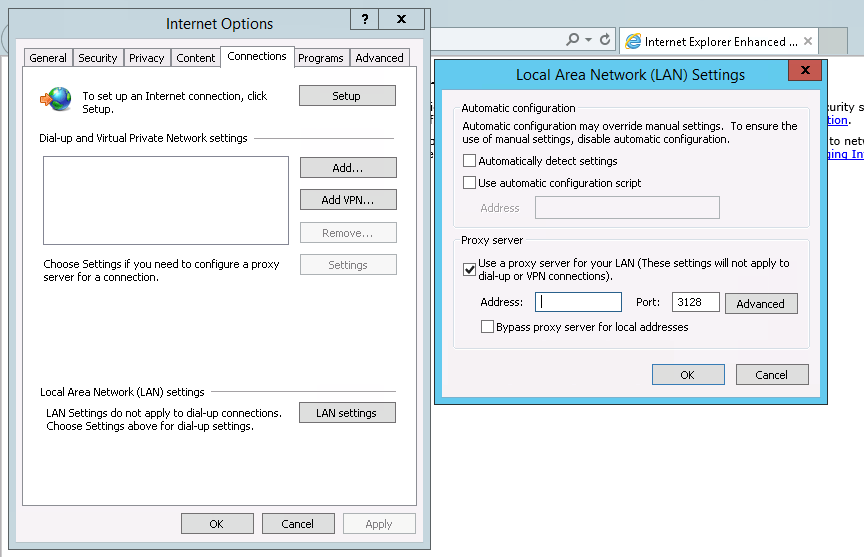
With webCommander 4.0 release, Jerry (@9whirls) has written an excellent automatic installation script (can be found here) that downloads all pre-requisites from the internet, installs IIS…etc. Since my VM was in private network that didn’t have access to outside network, I first tried it by configuring proxy connection within IE setting.

Screen Shot 2014-09-24 at 2.08.57 pm

However, got an error message when I ran the script that is attached below.

Exception calling "DownloadFile" with "2" argument(s): "The remote server returned an error: (407) Proxy
Authentication Required."
At C:\Users\administrator\Desktop\setup.ps1:66 char:2
    + $webClient.downloadfile($packageUrl, "C:\WebCommander\$packageName")
    + ~~~~~~~~~~~~~~~~~~~~~~~~~~~~~~~~~~~~~~~~~~~~~~~~~~~~~~~~~~~~~~~~~~~~
    + CategoryInfo          : NotSpecified: (:) [], ParentContainsErrorRecordException
    + FullyQualifiedErrorId : WebException

Throughout this blog post, I will aid people who’s trying to install webCommander 4.0 but the VM is in a private network that doesn’t have access to internet.

Script Modification

As the script was already using WebClient object, all I had to create was a new WebProxy object to parse the proxy IP address and credentials. In the parameter field, I added in:

  1. IP Address or hostname of the proxy server. Bear in mind, it requires the appropriate port to be specified in the end. Example is attached below.
  2. Username/password that has the access to the proxy server.

The change needs to be made are in bold and italic below.

Parameter

Param (
    $packageUrl = 'https://github.com/vmware/webcommander/archive/master.zip',
    $authentication = 'Windows',
    $adminPassword = '', # administrator password of the windows machine where webcommander is located
    $defaultPassword = '', # default password used to communicate with vSphere, VM and remote machine
    $proxyAddress = '', # IP or hostname of the proxy server. Include the port number in the end. For example, 'proxytest.test.com:3128'
    $proxyUserName = '',
    $proxyUserPassword = ''
)

Once 3 parameters were added in, used one if/else statement to ensure parameters for proxy configuration were entered in. After that, all I had to do was:

  • Define one WebProxy object with proxy server address in the parameter field.
  • Define a PSCredential object also from the parameter above.
  • Use above defined two objects information for the WebClient object.

Again, modification required are in bold and italic below.

WebClient + WebProxy

if ($proxyAddress -and $proxyUserName -and $proxyUserPassword) {
    $webClient = New-Object System.Net.WebClient
    $webProxy = New-Object System.Net.WebProxy($proxyAddress, $true)
    $proxyCredential = New-Object System.Management.Automation.PSCredential($proxyUserName, (ConvertTo-SecureString $proxyUserPassword -AsPlainText -Force))
    $webProxy.Credentials = $proxyCredential
    $webClient.Proxy = $webProxy
} else {
    $webClient = new-object system.net.webclient
}

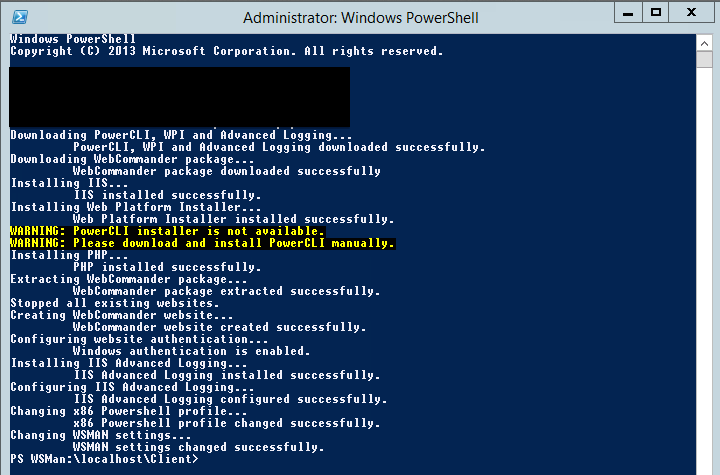
Once the modification was made, ran the script and wallah, it worked!

Screen Shot 2014-09-24 at 10.40.31 am

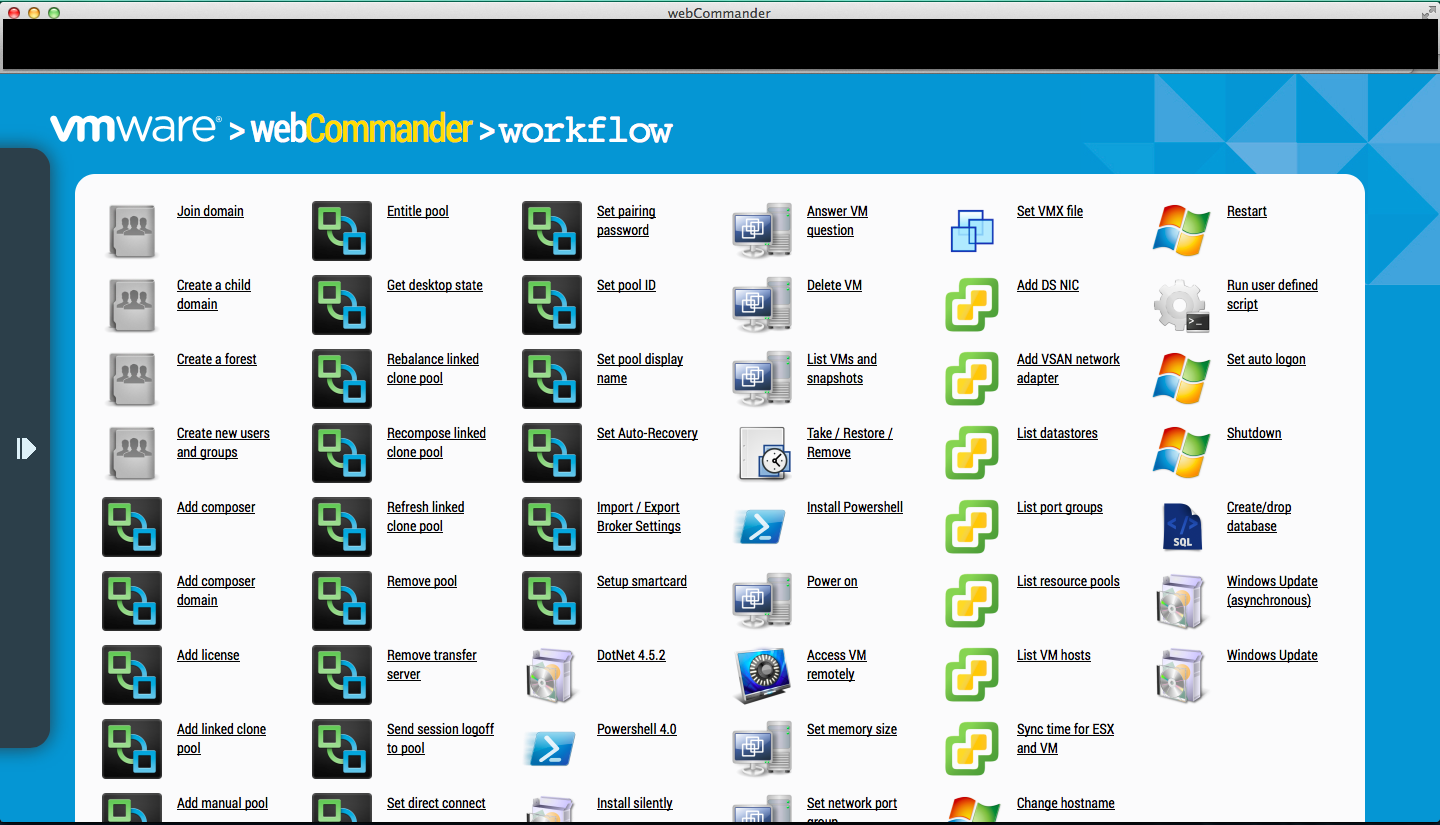
Navigated to webCommand URL and was successful.

Screen Shot 2014-09-24 at 11.26.43 am

Wrap-Up

In near future, I will commit the change above so that whoever requires proxy to install webCommander wouldn’t need to make a change above.

Hope this blogs helped and always welcome to ping me for any issues or suggestions.