VMware vCenter Orchestrator Part 1 – PowerShell Plug-in Installation

Introduction

VMware vCenter Orchestrator (hereafter vCO) was deployed a few weeks back and it’s been decided to deploy PowerShell plug-in for advanced automation workflows. Due to the lack of documentation, it wasn’t straightforward installing & configuring PowerShell host. In this post, I would like to share my experience with you.

For those of you who’s not familiar with vCO, the following documentations would be helpful. Also, attaching PowerShell plug-in documentation.

Pre-requisite

Before starting, there are some pre-requisites to prepare:

  1. PowerShell Host
    • Used Windows 2008 R2
  2. PowerShell plug-in for vCO
  3. IIS
  4. Local admin access

Installing PowerShell Plug-in

This is quite straightforward, please refer to this documentation. Basically, it’s to download and upload a file.

Configuring PowerShell Host

PowerShell plug-in uses Windows Remote Management to connect to the PowerShell host. For it’s authentication, there are 2 methods:

  • Basic Authentication
  • Kerberos Authentication

As there was no Key Distribution Center available i.e. Kerberos cannot be used for the authentication, I will be going through basic authentication with HTTPS.

1. Create self-signed certificate

The documentation suggests using makecert. However, it wasn’t easy enough to install Windows SDK and it’s dependencies. Alternatively, I used IIS to generate a self-signed certificate.

  1. Run IIS Manager
  2. Go to Server Certificates
  3. Click Create Self-Signed Certificate on the right hand corner
  4. Put the friendly name in, FQDN of the PowerShell host
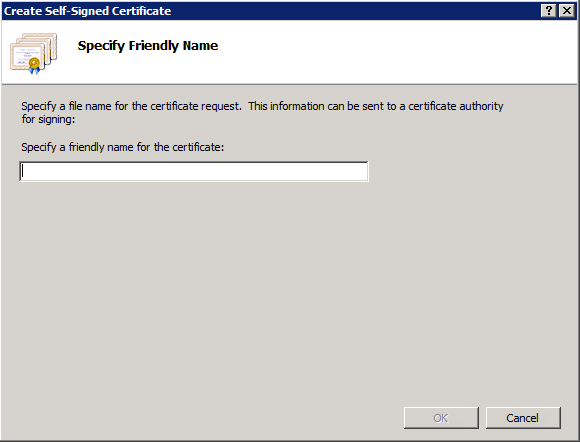
vCO Blog 1

Once the self-signed certificate is created, it’s required to check the right certificate is added in certificate store.

  1. Go to Run and type mmc
  2. Add Snapin and select Certificates
  3. Under Certificates, expand Personal -> certificates and ensure the self-signed certificate created is listed here
  4. Also, expand and check Certificates -> Trusted Root Certification Authorities -> certificates

Now it’s good to go and configure WinRM connection.

2. Configure WinRM connection, HTTPS

As discussed in the introduction, basic authentication will be used. There are two ways, either HTTP or HTTPS. To ensure a secure connection, I will be going through HTTPS (this is also the reason why the certificate was generated previously).

  1. Open Command Prompt as the administrator
  2. Run: winrm create winrm/config/Listener?Address=*+Transport=HTTPS @{Hostname=”host_name”;CertificateThumbprint=”certificate_thumbprint”}
    • host_name is the friendly name you’ve put in while creating the certificate
      certificate_thumbprint detail could be found on mmc. Double click the self-signed certificate and look for Thumbprint under Details tab
  3. Run the following command to confirm winrm is configured properly: winrs -r:https://hostname:5986 -u:administrator -p:password hostname
  4. After this, ensure port 5986 is opened on the Windows firewall. This is the default port for WinRM HTTPS connection.

3. Import SSL certificate to vCO

Before adding a PowerShell host, it’s required to import the SSL certificate to vCO.

  1. Log-in to https://vco_server:8283
  2. Navigate to Network -> SSL Trust Manager
  3. Under Import From URL: https://powershell_host:5986

To remind you again, 5986 is the default port for WinRM HTTPS connection.

4. Enable Basic Authentication on the Group Policy

After step 3, I tried to run Add a PowerShell Host workflow in the vCO client and faced the following issue:

Unauthorized access. Authentication mechanism requested by the client may not be supported by the server. (Dynamic Script Module name: addPowerShellHost#16).

Running winrm get winrm/config/service/Auth, found out that Basic authentication was disabled and this is by default.
Enabled it by winrm set winrm/config/service/Auth @{Basic=“True”}. However, even the Basic authentication was active, I was still suffering from the error message above.

After Googling a bit, one guy suggested to edit Group Policy.

  1. Run Group Policy Edit, gpedit.msc
  2. Navigate to Computer Configuration -> Administrative Templates -> Windows Components -> Windows Remote Management (WinRM)
  3. For both Client and Service, Enable Basic Authentication
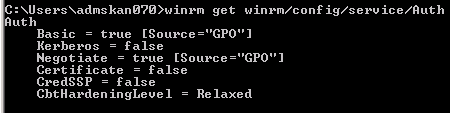
vCO Blog 4

Once it was enabled in the Group Policy, I was able to add a PowerShell host.

5. Add a PowerShell Host

Adding a PowerShell host could be done via running the workflow.

  1. Log-in to VMware vCenter Orchestrator Client
  2. Under Design -> Library -> PowerShell -> Configuration -> Add a PowerShell host
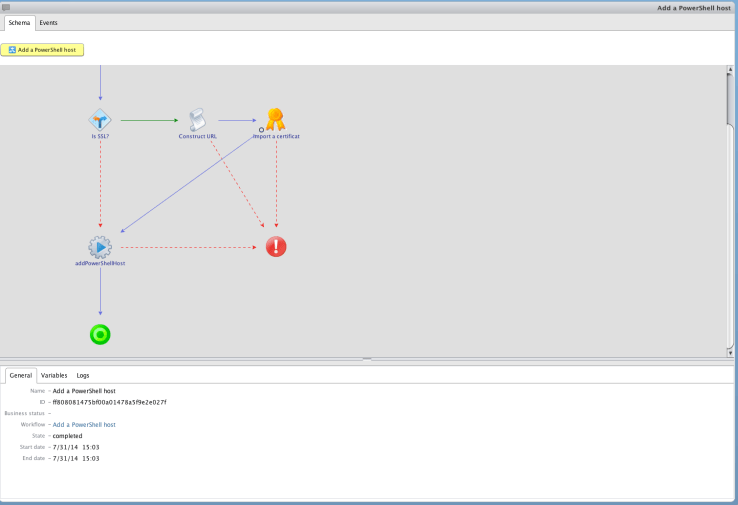
vCO Blog 5

vCO Blog 6

Future Work
For the next blog post, I will be going through how to import your PowerCLI script into vCO.

Hope this was helpful.
ESXi Intra vCenter Migration – Be Cautious

Introduction

Last week, migration of virtual machines to vMSC was almost completed and it was about time to bring one cluster to another vCenter server to distribute the workload. During the testing phase, faced an unexpected result and I would like to share this experience with you.

Environment

The following was how the VMware infrastructure was setup:

  1. 2 x vCenter servers
    • vCenter_A and vCenter_B
  2. 1 x Metro Storage Cluster
  3. 6 x ESXi servers
  4. dvSwitch with same name & configuration on both vCenter servers

Migration Plan

The following was the migration plan in the document:

  1. Import dvSwitch configuration from vCenter_A and export it on vCenter_B
    • This was done in advance
  2. Disconnect and remove one ESXi from vCenter_A
  3. Connect the ESXi on vCenter_B
  4. Repeat 2~3 for the rest of ESXi servers

Testing Phase

Before working on the production ESXi servers, it was decided to use one test ESXi server (here after ESXi_Test) to bring across to vCenter_B to validate the migration plan. As per the document, I performed the same procedure mentioned above:

  1. Disconnected and removed ESXi_Test from vCenter_A
  2. Connected ESXi_Test on vCenter_B
  3. Found that dvSwitch didn’t exist
    • dvSwitch existed but the problem was that some of the portgroups in vCenter_A were modified and not in vCenter_B, i.e. didn’t match
    • It was decided to import/export the dvSwitch in vCenter_A to vCenter_B and do the test again
  4. Disconnected and removed ESXi_Test from vCenter_B
  5. Connected ESXi_Test back to vCenter_A

At this stage, ESXi was not connected to vCenter_A causing the following error message:

ODBC error: (23000) – [Microsoft][SQL Server Native Client 10.0][SQL Server]The INSERT statement conflicted with the FOREIGN KEY constraint “FK_COMP_RES_VSAN_REF_HOST”. The conflict occurred in database “vcenter_database”, table “dbo.VPX_HOST”, column ‘ID’.” is returned when executing SQL statement “INSERT INTO VPX_COMPUTE_RESOURCE_VSAN_HOST WITH (ROWLOCK) (COMP_RES_ID, HOST_ID, NODE_UUID, CLUSTER_UUID, AUTOCLAIM_STORAGE, ENABLED) VALUES (?, ?, ?, ?, ?, ?)”

Something has happened while inserting an element to the vCenter database. Tried again and got the same issue. The worst part was that after a few minutes, vCenter_A went offline.

To troubleshoot this:

  1. Checked the vCenter services
    • Everything was running
  2. Checked the database services
    • Everything was running

This indicated that vCenter & database services were running but the communication between them through ODBC had an issue. The first thing I tried was to restart vCenter server services using Heartbeat console. Luckily, this brought the vCenter server back to online.

Wrap-Up

It’s not certain to say this has happened due to the mis-configuration of dvSwitch in vCenter_A and vCenter_B. Hence, I will be logging a support request to VMware Support and update this post in near future.

In the meantime, if you are planning to do the same thing, bear in mind that bringing back the ESXi server might cause an outage.

Hope this helps.

vMotion Interesting Behaviour

Introduction

I’ve been doing some migration work for the last few weeks and found an interesting behaviour of vMotion that I would like to share with you.

Migration Scenario

The migration work was quite simple, just had to vMotion a few virtual machines from a cluster to another due to SQL licensing.

The end-users wanted the migration to happen live but they were OK with a few packets loss.

As there were shared storage available, it’s been decided to use vMotion + storage vMotion.

Infrastructure

The following is how the vSphere infrastructure was setup for the migration:

  1. Two clusters
    • Source_Cluster
    • Destination_Cluster
  2. 4 x 5.5 ESXi servers per cluster
    • 2 x 10Gbe network uplinks
  3. Management and vMotion VMKernels in different subnet
  4. Different dvSwitches for clusters
    • All 8 ESXi servers in source and destination clusters were with active/active on the physical interfaces, i.e. No LAG.
  5. Shared storage between clusters were available

Pre-requisites

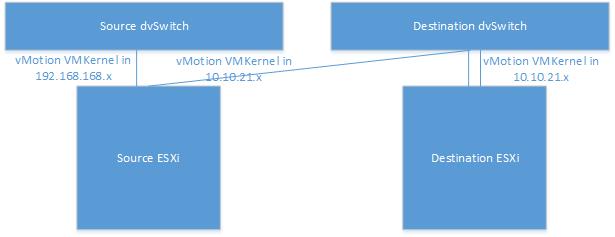
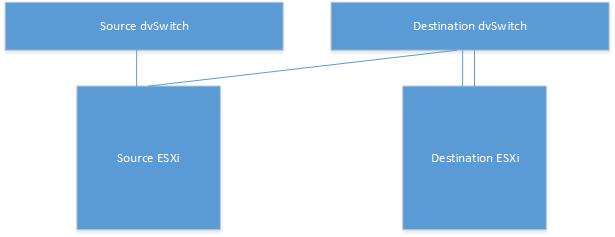
There was only one element needed to be prepared for the migration, shared dvSwitch between clusters. Just like last time (the blog can be found here), it’s been decided to pull one uplink out from source ESXi server which will be used for the migration.  Here after, I will call ESXi_Source_Migration and ESXi_Destination_Migration for the ESXi servers purposed for migration. The following is how it looked like:

vMotion1

Then the problem was that the vMotion VMKernels were in different subnet:

  1. Source_Cluster => 192.168.168.x/24
    • No Gateway, layer 2 network
  2. Destination_Cluster => 10.10.21.x/24
    • No Gateway, layer 2 network

After a discussion, it’s been decided to add one more vMotion VMKernel to ESXi_Source_Migration with the subnet 10.10.21.x so that the vMotion could happen between the source ESXi servers using 192.168.168.x subnet and between ESXi_Source_Migration and ESXi_Destination_Migration using 10.10.21.x subnet. Figure is attached below:

vMotion2

Result 

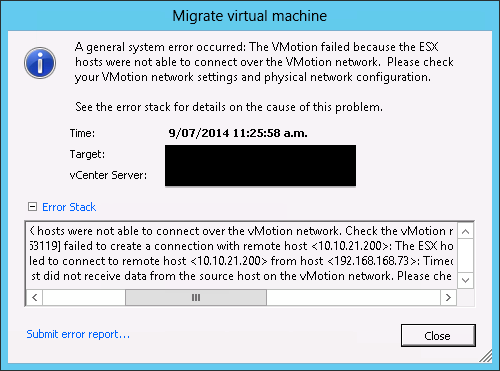
The first virtual machine tried to migrate was not in ESXi_Source_Migration hence it’s been vMotioned to this ESXi server and vMotion was successful. Then I kicked off the migration to ESXi_Destination_Migration. After a few minutes, the process was stuck at 14% and eventually failed saying 192.168.168.x VMKernel cannot talk to 10.10.21.x VMKernel. Error is attached below:

Screen Shot 2014-07-09 at 11.29.00 am

What I thought was that when a virtual machine was being migrated from ESXi_Source_Migration to ESXi_Destination_Migration, it should have been using vMotion VMKernel in 10.10.21.x subnet so that it can talk to the destination.

The quick fix was to remove 192.168.168.x vMotion VMKernel from the source ESXi server and it worked.

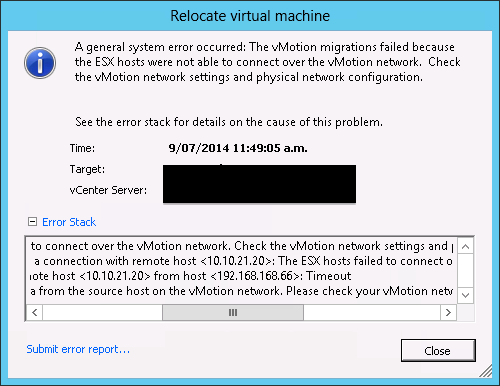
After the migration’s finished, added 192.168.168.x VMKernel back to the source ESXi server and was about to start the second virtual machine. It was also located in different ESXi server in source cluster so I vMotioned it to ESXi_Source_Migration. Interesting thing happened, it failed. The vMotion in the same cluster wasn’t successful saying the following:

Screen Shot 2014-07-09 at 11.51.24 am

10.10.21.x VMKernel was being used, not 192.168.168.x. Here again, 10.10.21.x VMKernel was removed which allowed the vMotion to be accomplished.

Summarising the result above:

  1. First virtual machine was vMotioned to ESXi_Source_Migration (successful)
  2. Performed vMotion + storage vMotion to ESXi_Destination_Migration (failed)
    • Removing 192.168.168.x vMotion VMKernel fixed the issue
  3. After the migration, added 192.168.168.x vMotion VMKernel back to ESXi_Source_Migration
  4. Tried to vMotion second virtual machine within the cluster to ESXi_Source_Migration (failed)
    • Removing 10.10.21.x vMotion VMKernel fixed the issue

With the result above, it’s could be concluded that vMotion uses only one vMotion VMKernel and the latest one that was active before.

Workdaround

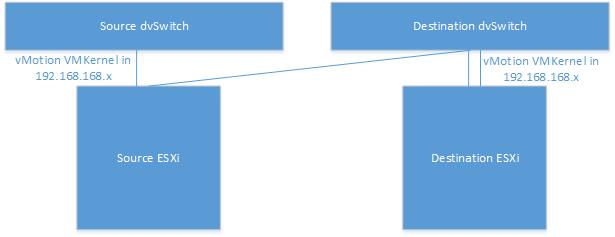
Since removing/adding vMotion VMKernels wasn’t an ideal process, it’s been decided to change the destination vMotion VMKernels in 192.168.168.x subnet.

vMotion3

After modification, inter/intra cluster vMotion worked fine.

Wrap-Up

Even though it’s possible to add multiple vMotion VMKernels, apparently it’s not supported in this situation. Probably this is something VMware could improve in future to support this.

For now, using the vMotion VMKernels in the same subnet would be the best & easiest option.