ESXi Custom Firewall Rule – Automation using Powercli and PLINK

Introduction

It’s been a long time using Nagios to monitor our vSphere infrastructure and found the new plug-in we’ve upgraded requires a custom firewall rule to be opened on ESXi servers to monitor NTP status. By default, when NTP is enabled, outgoing port 123 in UDP is opened but Nagios required incoming port 123 in UDP to connect to ESXi and check for the NTP status.

As there are hundreds of ESXi servers to configure, decided to write a script to automate the process.

There is an excellent blog by William Lam that goes through how to create a custom firewall rule and it can be found here. Please make sure you read this blog before going through this post.

Pre-requisites

  1. SSH is enabled across all ESXi servers
  2. VMFS volumes are shared across ESXi servers in a cluster
  3. Download plink.exe , it can be found here
  4. Create a custom firewall XML file, follow William’s post
  5. Create an input .csv file, detail will be explained below
  6. Locate above files in the same directory as the script

ntpd.xml

The following is the XML file I used for creating a custom firewall rule. The bold and underline, “ntpd” is the name of the custom rule which will be shown under Security Profile. Change the name that fits your naming convention.

<ConfigRoot>
  <service>
    <id>ntpd</id>
    <rule id='0000'>
      <direction>inbound</direction>
      <protocol>udp</protocol>
      <porttype>dst</porttype>
      <port>123</port>
    </rule>
    <enabled>true</enabled>
    <required>false</required>
  </service>
</ConfigRoot>

Input

PLINK is required to copy the .xml file to /etc/vmware/firewall folder. To do this, it is a must to provide root password. In our case, each cluster has different root password so I’ve decided to create an input file like the following:

cluster,password
cluster_1,123456
cluster_2,123457
cluster_3,123458
...
...

Script

The following is the script I wrote. It’s a simple script that does:

  • Import the password.csv file
  • For each cluster:
    • Find the datastore that has the largest freespace
    • Copy the .xml file to the datastore found above
    • For each ESXi server:
      • Check if the inbound port 123 is already opened
      • If it’s opened, skip this ESXi server
      • If not, copy the .xml file from the datastore above to /etc/vmware/firewall directory via PLINK
      • Refresh the firewall rule using esxcli network firewall refresh
      • Present the result
$input = Import-Csv C:\script\input\password.csv

foreach ($cluster in (Get-Cluster | sort Name)) {
  $datacenter = Get-Datacenter -Cluster $cluster | %{$_.Name}
  $datastore = (Get-VMHost -Location $cluster | Get-Datastore | Sort-Object FreespaceGB -Descending)[0]
  Write-Host "Copying ntpd.xml file to $datastore"
  Write-Host ""
  Copy-DatastoreItem "ntpd.xml" -Destination "vmstore:\$datacenter\$datastore" 

  foreach ($esxi in (Get-VMHost -Location $cluster | Sort Name)) { 
    $esxcli = Get-Esxcli -VMHost $esxi
    $ntp_rule = $esxcli.network.firewall.ruleset.rule.list() | where {$_.PortBegin -eq 123 -and $_.PortEnd -eq 123 -and $_.Direction -eq "Inbound"}
    if ($ntp_rule) { 
      Write-Warning "$esxi already has inbound NTP Daemon running"
      Write-Host ""
    } else {
      $password = $input | where {$_.cluster -match $cluster.Name} | %{$_.password}
      echo y | .\plink.exe -pw $password "root@$esxi" "cp /vmfs/volumes/$datastore/ntpd.xml /etc/vmware/firewall;"

      Write-Host "Refreshing Firewall Rule"
      $esxcli.network.firewall.refresh()
      Write-Host ""

      Write-Host "The modification is made, printed below"
      $esxcli.network.firewall.ruleset.rule.list() | where {$_.PortBegin -eq 123 -and $_.PortEnd -eq 123}
    }   
  }
}

Wrap-Up

One of the constraints I can think of is enabling SSH on ESXi servers as it’s not recommended by VMware. I was thinking of automating the process without using SSH but couldn’t find any other ways of doing it. Please ping me if any one of you finds a way.

Assuming SSH is disabled and trying to get an approval to open the port using the script above, I would suggest you to:

  1. Work on one cluster at a time
  2. Enable SSH just after the foreach ESXi loop and disable at the end of the loop

In this way, SSH will only be enabled for one ESXi server at a time.

Hope this helps.


Power On Virtual Machine Fails – VMFS Heapsize

Introduction

Several days before, an incident was assigned to me saying the end-user could not power on one of his virtual machines. Tried to power it on and an error message popped up, however, the message was not really helpful. All it said is “A general system error occurred: The virtual machine could not start”.

Symptom

As described in introduction, the error message was not telling me what the problem is. A figure is attached below.

Screen Shot 2014-06-30 at 11.29.12 am

Next thing I looked into was the vmware.log and found that there was an issue with creating swapfile.

vmware.log
2014-06-29T22:27:18.702Z| vmx| CreateVM: Swap: generating normal swap file name.
2014-06-29T22:27:18.704Z| vmx| Swap file path: '/vmfs/volumes/521439a7-bd74efb3-d915-d4ae52a522bf/aaa/aaa-aa1fa36d.vswp'
2014-06-29T22:27:18.704Z| vmx| VMXVmdb_GetDigestDiskCount: numDigestDisks = 0
2014-06-29T22:27:18.705Z| vmx| Msg_Post: Error
2014-06-29T22:27:18.705Z| vmx| [msg.dictionary.writefile.truncate] An error occurred while truncating configuration file "/vmfs/volumes/521439a7-bd74efb3-d915-d4ae52a522bf/aaa/aaa.vmx":Cannot allocate memory.
2014-06-29T22:27:18.705Z| vmx| [vob.heap.grow.max.reached] Heap vmfs3 already at its maximum size of 83887056. Cannot expand.
2014-06-29T22:27:18.705Z| vmx| [vob.heap.grow.max.reached] Heap vmfs3 already at its maximum size of 83887056. Cannot expand.             2014-06-29T22:27:18.705Z| vmx| [vob.swap.poweron.createfailure.status] Failed to create swap file '/vmfs/volumes/521439a7-bd74efb3-d915-d4ae52a522bf/shrwebprd02/shrwebprd02-aa1fa36d.vswp' : Out of memory
2014-06-29T22:27:18.705Z| vmx| [msg.vmmonVMK.creatVMFailed] Could not power on VM : Out of 
2014-06-29T22:27:18.705Z| vmx| [msg.monitorLoop.createVMFailed.vmk] Failed to power on VM.                                                2014-06-29T22:27:18.705Z| vmx| ----------------------------------------                                                                   2014-06-29T22:27:18.838Z| vmx| Module MonitorLoop power on failed.                                                                        2014-06-29T22:27:18.838Z| vmx| VMX_PowerOn: ModuleTable_PowerOn = 0                                                                       2014-06-29T22:27:18.840Z| vmx| Vix: [28466190 mainDispatch.c:4084]: VMAutomation_ReportPowerOpFinished: statevar=1, newAppState=1873, success=1 additionalError=0
2014-06-29T22:27:18.840Z| vmx| Vix: [28466190 mainDispatch.c:4103]: VMAutomation: Ignoring ReportPowerOpFinished because the VMX is shutting down.              
2014-06-29T22:27:18.840Z| vmx| Vix: [28466190 mainDispatch.c:4084]: VMAutomation_ReportPowerOpFinished: statevar=0, newAppState=1870, success=1 additionalError=0
2014-06-29T22:27:18.840Z| vmx| Vix: [28466190 mainDispatch.c:4103]: VMAutomation: Ignoring ReportPowerOpFinished because the VMX is shutting down.              
2014-06-29T22:27:18.840Z| vmx| Transitioned vmx/execState/val to poweredOff                                                               2014-06-29T22:27:18.842Z| vmx| Vix: [28466190 mainDispatch.c:4084]: VMAutomation_ReportPowerOpFinished: statevar=0, newAppState=1870, success=0 additionalError=0
2014-06-29T22:27:18.842Z| vmx| Vix: [28466190 mainDispatch.c:4103]: VMAutomation: Ignoring ReportPowerOpFinished because the VMX is shutting down.
2014-06-29T22:27:18.842Z| vmx| VMX idle exit

To summarise the log above:

  1. The ESXi server tried to create a swapfile for this virtual machine to power on
  2. There was an error while creating swapfile due to VMFS3 HeapSize is already at its maximum size
  3. Failed to power-on this virtual machine
To understand this issue, it’s required to go through VMFS HeapSize.

VMFS HeapSize

The ESXi server in this environment is 5.0 with Update 1. As per the KB article, the default allowed active VMDK storage per ESXi is 8TB with the default heap size 80MB. This means that if a single ESXi server has virtual machines with more than 8TB of active VMDKs, the ESXi will refuse to power-on more virtual machines.

To check how much VMDK the ESXi server has, I ran a simple PowerCLI script to check. The script and output is attached below:

foreach ($esxi in (Get-Cluster -Name “Name of Cluster” | Get-VMHost | Sort Name)) { 
  $esxi | select Name, @{N="Sum";E={ ($esxi | Get-VM | Get-HardDisk | %{$_.CapacityGB} | Measure-Object -Sum).Sum }}
}
Name,Sum                            
ESXiA,3335.7681760788
ESXiB,3035.02425670624
ESXiC,3942.765625
ESXiD,4861
ESXiE,4538.28125
ESXiF,16272.9050750732

ESXi A to E look good but F, it’s using approximately 16TB. Checked the history of virtual machine where it was running previously and yes, it was in ESXiF.

One thing to note is that it doesn’t necessarily mean that ESXiF has 16TB of active VMDK, it could be much lesser than 16TB. However, there is a high chance of exceeding 8TB and it happened to this specific virtual machine.

Solution

The solution is quite simple, vMotioned the virtual machine to ESXiB which has the lowest VMDK size and it was happy.

Ultimately, you will want to upgrade ESXi servers to 5.5 that improved VMFS HeapSize. There is an excellent article by Cormac Horgan explaining the enhancement.

Hope this helps.

vMSC & 3PAR – Interesting Behaviour

Introduction

VMware Metro Storage Cluster is defined as:

vMSC is a certified configuration for stretched storage cluster architectures. A vMSC configuration is designed to maintain data availability beyond a single physical or logical site. A storage device configured in the vMSC configuration is supported after successful vMSC certification.

The benefit vMSC provides is simple. When a disaster happens at one datacentre, HA kicks in and fails over virtual machine to another datacentre automatically. It’s a normal vCenter server cluster with HA/DRS enabled but half ESXi servers are in one datacentre and the rest are in another datacentre.

We deployed vMSC with HP 3PAR peer-persistence functionality (more details could be found here). Before putting it into production, performed functional testing to ensure it works as expected and during a certain testing, found an interesting behaviour with 3PAR.

I won’t be going through all configurations needs to be done on vMSC. I would suggest you to read the following articles and book:

Infrastructure

The following is how VMware and SAN infrastructure is setup (I will be excluding networking components as it’s not a major component in this test):
  • 2 x physical datacetres
    • Datacentre_A and Datacentre_B
  • 2 x vCenter servers
    • vCenter_A and vCenter_B
    • A for Datacentre_A and B for Datacentre_B
  • 1 x Metro Storage Cluster
    • Located in vCenter_A
  • Multiples of ESXi servers
    • ESXi_A, ESXi_B… and so on
    • Only 2 are shown in the figure below
  • 2 x 7400 3PAR
    • Storage_A and Storage_B

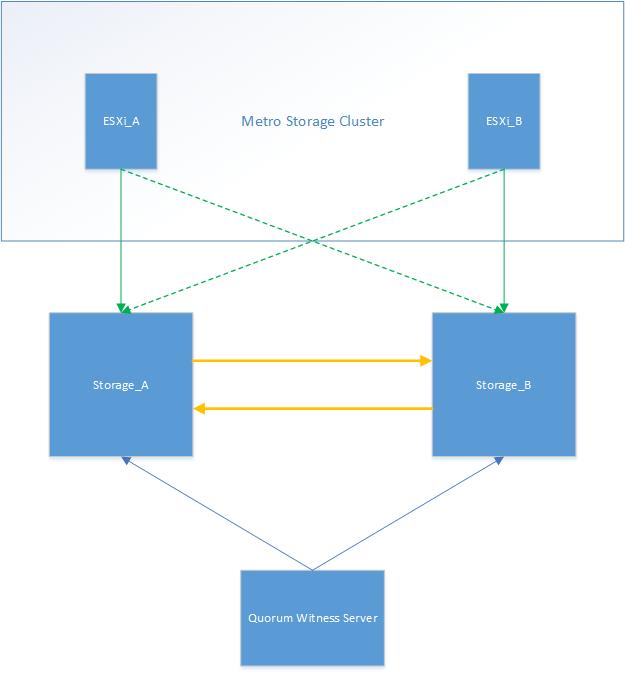
Overall architecture is attached below (it’s a very high level diagram, detailed one could be found in introduction references):

  1. Green line represents the FC connection between ESXi server and 3PAR storage
  2. Green dotted line represents the active/standby FC connection between ESXi server and 3PAR storage
  3. Yellow line represents the replication link between 3PAR storages
  4. Blue line represents the network connection between 3PAR storages and Quorum witness server
vMSC_1

Assumption

Assumptions made are listed below:
  1. Virtual machines are uniformly accessing datastores. For instance, virtual machine running in ESXi_A uses Storage_A.
  2. Disk.AutoremoveOnPDL is set to 0 and VMkernel.Boot.terminateVMOnPDL to true.
    • A script attached below could be used to validate these two advanced settings.
foreach ($esxi in (Get-Cluster -Name “Name of the cluster(s)" | Get-VMHost | sort Name)) { 
    $advanced_setting = [string]::Join(", ", ($esxi | Get-AdvancedSetting | where {$_.Name -match "Disk.AutoremoveOnPDL|VMkernel.Boot.terminateVMOnPDL" } | %{$_.Name + ":" + $_.Value})) 
    $esxi | select Name, @{N="Advanced Settings";E={$advanced_setting}} 
}

Test Plan

The test plan is outlined below:
  1. Disconnect the ISLs between two datacentres, only FC connection
  2. Disconnect the network link between Quorum witness server and Storage_A

A figure is attached below:

vMSC_2

Expected Result

The following is what’s expected with the test above:
  1. Storage_A loses connection to Storage_B as well as the Quorum witness server
  2. To prevent data corruption, Storage_A stops all I/O
  3. Storage_B fails over from read-only to read/write
  4. ESXi_A receives PDL sense codes, i.e. H:0x0 D:0x2 P:0x0 Valid sense data: 0x5 0x25 0x0 from Storage_A
  5. HA kills the virtual machines in PDL state and unregister from the inventory
  6. HA registers killed virtual machines to ESXi_B accessing Storage_B and power-on

Actual Result

Performing the test, interesting behaviour was noticed. All ESXi servers in Datacentre_A were not responding. Re-connecting ESXi server didn’t work, they were hanging.

To investigate into the issue, made a SSH connection to one of the ESXi servers and opened the vmkernel.log. While looking into it, found a few interesting lines (brief summary):

  1. Could not select path
  2. Awaiting fast path state update
  3. No more commands to retry

The log was telling that ESXi servers were keep trying to search for the available path and eventually, it failed to find one. Running esxcfg-mpath -b outputted 4 dead paths and 4 standby paths.

How does ESXi know that it should stop looking for active path? It should receive either PDL or APD sense codes. The next element I looked into was PDL sense codes in the vmkernel.log. I used vCenter Log-Insight to filter by H:0x0 D:0x2 P:0x0 Valid sense data: 0x5 0x25 0x0 but couldn’t find any.

To summarise what happened, when Storage_A stopped all I/O from ESXi_A, it did not send PDL sense codes to ESXi_A. As a result, ESXi_A was keep looking for active paths on and on and finally, it failed. This put ESXi servers in not responding state.

The only way to fix this issue was to reboot the affected ESXi servers.

After having a chat with 3PAR engineers, this is a known behaviour and it’s by design meaning that 3PAR won’t send PDL sense codes to ESXi servers when it stops all I/O.

Wrap-Up

This test scenario is a very special case. Losing network connection from the Quorum witness server to only one 3PAR and losing only FC ISLs between 3PARs is highly unlikely to happen. However, important element found in this test is that 3PAR doesn’t send PDL sense codes when it stops I/O to prevent data corruption. So in future, if this happens, rebooting all ESXi servers should be executed ASAP instead of waiting for HA to failover virtual machines automatically.